English
1. register
ThinkLink supports a variety of convenient registration methods. Users can choose the most suitable method to complete account creation according to their usage habits. The URL of ThinkLink cloud is https://thinklink.manthink.cn
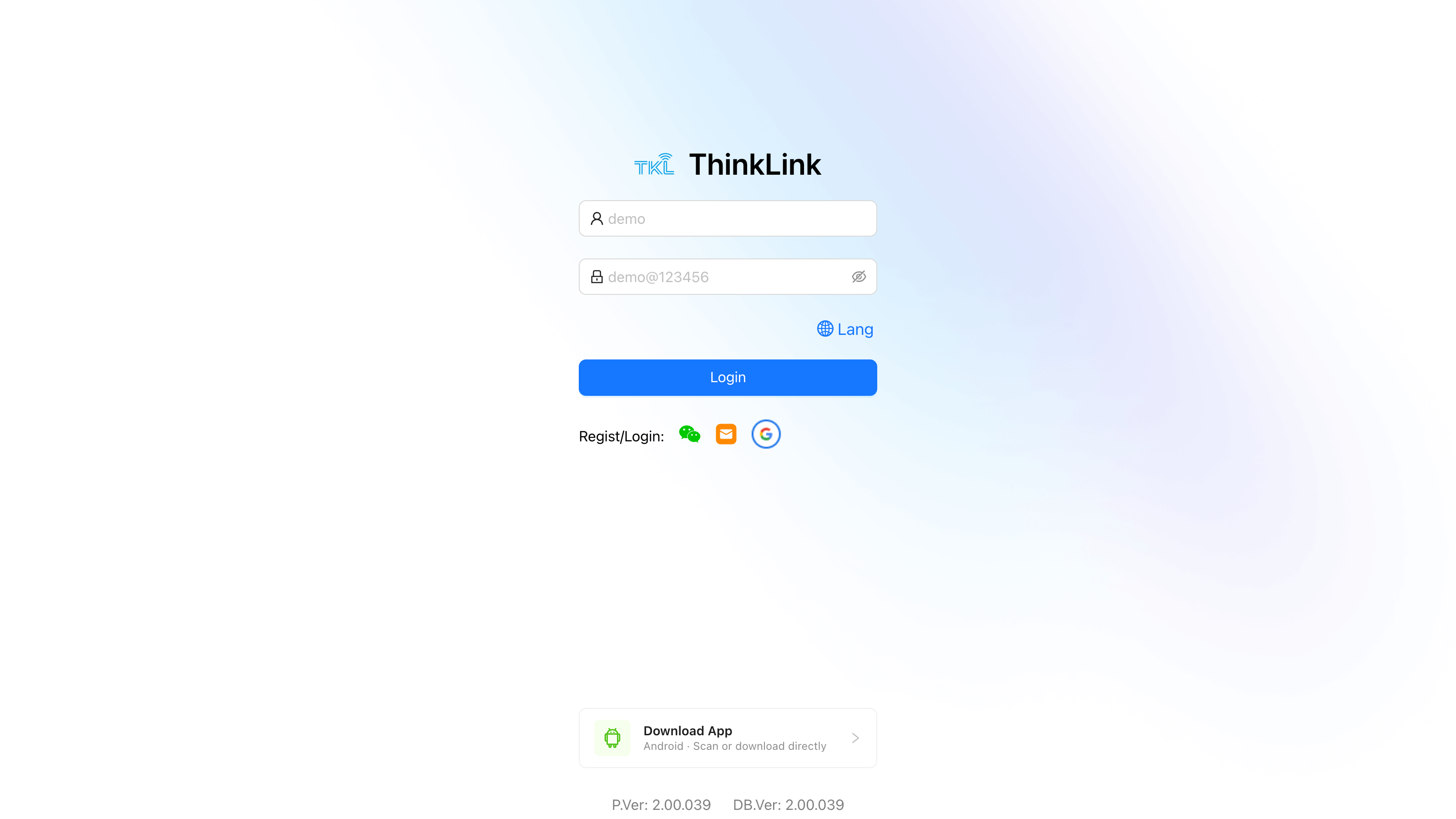
1.1. Quick Registration
support one-click login through WeChat or Google account and automatically complete the registration process, without manually filling in information, and quickly open the use experience.
1.2. Email Registration
if you choose email registration, please follow these steps:
- enter a valid email address on the registration page.
- The system will automatically send an email containing the verification code to the mailbox.
- Fill in the received verification code in the page to verify the ownership of the mailbox.
- After the verification is successful, the first login needs to complete the basic information, including:
- nickname
- user account (unique in the system)
- login Password
after completing the above information, the registration process will be completed.
Note: The user account must be unique in the system and cannot be repeated.
1.3. Login
ThinkLink provides four flexible login methods to meet the access needs of different users:
- weChat account
- Google Account
- register Email
- user account name
users can choose any way to log in according to the actual situation.
Lynx Desktop Sign-in and Session Recovery
This guidance applies where Lynx desktop identity integration is enabled and the account is linked to ThinkLink. Ask your administrator whether it is available; the ThinkLink version number alone does not confirm support in your environment.
When using ThinkLink through Lynx desktop, LynxHub handles sign-in credential renewal on the server. You do not need to copy or replace credentials manually or enter a synchronization key in a micro application.
- Check that the desktop is signed in with the account linked to ThinkLink.
- If prompted that your session has expired or that you must sign in again, follow the desktop prompt, then reopen the ThinkLink application.
- After sign-in is restored, check the current organization. To switch, select an organization you have joined in Personal Center. Devices, data, and available actions remain subject to your role in that organization.
Successful credential renewal does not grant access to organization data. If the organization is missing or cannot be opened, ask its administrator to check your membership. If you need to join, ask for an invitation and accept it. See Organization Management.
| Situation | What to do |
|---|---|
| ThinkLink sign-in still fails after signing in again | Ask the administrator to confirm that desktop identity integration is enabled, the account link is valid, and the corresponding ThinkLink user still exists. |
| The administrator identifies an identity integration configuration mismatch | Have the administrator check the server configuration. Do not enter a synchronization key in the desktop or a micro application to try to fix it. |
| Sign-in works, but the organization or required action is unavailable | Ask the organization administrator to check membership and roles. Repeated sign-in does not add permissions. |
Synchronization keys are for server use only; users do not need to obtain them. The desktop account service must confirm sign-out, revoked credentials, or deleted account links. Successful credential renewal alone does not establish that all of these states have been checked.
1.4. Android App Download
The login page provides an Android App download entry. Open it to install available apps by QR code or direct download.
The current app list includes NFC-Tap, used for NFC Template read/write card scenarios. Download URL:
text
https://thinklink.manthink.cn/NFC-Tap.apk