TapLink User Manual
TapLink is an NFC device-provisioning toolkit for field engineers. With one NFC-capable Android phone, you can read and write device parameters, use cloud NFC templates, configure LoRa modules, and perform device firmware upgrades over NFC.
This guide applies to the current Android release. Templates, firmware, organizations, and server access are managed by your deployment administrator.
Overview
TapLink supports three core field workflows:
- Template Parameters: Select a cloud NFC template, read device data, edit values, and write them back.
- Device Upgrade: Select remote firmware or a local package, match device information, and upgrade over NFC.
- LoRa Parameters: Read and write AppEUI, DevAddr, keys, frequency, power, and 16-channel settings.
After sign-in, you can also view cloud templates for the active organization, switch organizations and interface language, and manage the remote server setting.
Requirements
- An Android phone that supports NFC, with NFC enabled.
- Physical access that lets the phone's NFC antenna reach the device's NFC area.
- Network access to the ThinkLink backend specified by your administrator.
- An authorized account, organization, NFC templates, and firmware resources.
- Sufficient phone battery for firmware upgrades, with screen locking and app switching avoided during the operation.
Download and Install
Download the TapLink Android APK
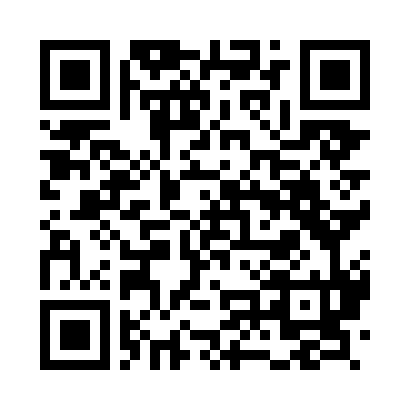
- Scan the QR code with an NFC-capable Android phone, or open the download link.
- If Android warns about installing from an unknown source, first confirm that the download domain is
thinklink.manthink.cn, then authorize this installation only. - After installation, verify that NFC is enabled in Android settings.
Installation safety
Install only the APK delivered from the official HTTPS address above. Do not install copies forwarded through messaging apps, file-sharing services, or unknown websites.
First-time Setup
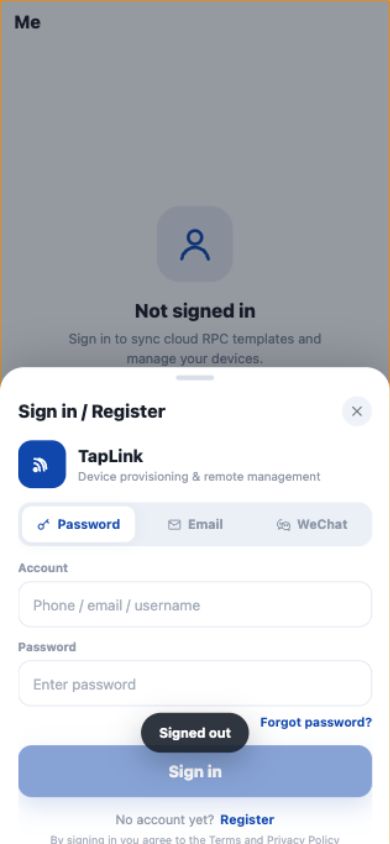
- Open Me from the bottom navigation.
- Enter the remote server supplied by your administrator under Service.
- Tap Sign in / Register and select password sign-in.
- Enter the account and password supplied through a secure channel.
- After sign-in, confirm the active organization and allow template resources to synchronize.
The source test environment used http://192.168.1.216. This value illustrates the server field only. For normal use, enter the endpoint supplied by your deployment administrator and prefer HTTPS with a trusted certificate.
Credential safety
This manual does not publish a test account or password. Do not save credentials on untrusted networks or shared devices, and sign out after use.
Home
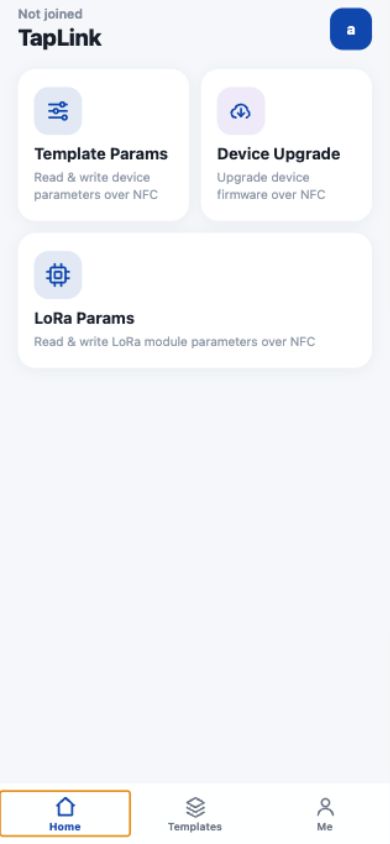
Home provides three primary actions:
- Template Params: Read and write parameters through a template.
- Device Upgrade: Perform device firmware upgrades over NFC.
- LoRa Params: Read and write LoRa module registers.
Use the bottom navigation to switch among Home, Templates, and Me. Before field work, confirm that the active organization and server status are correct.
Template Parameters
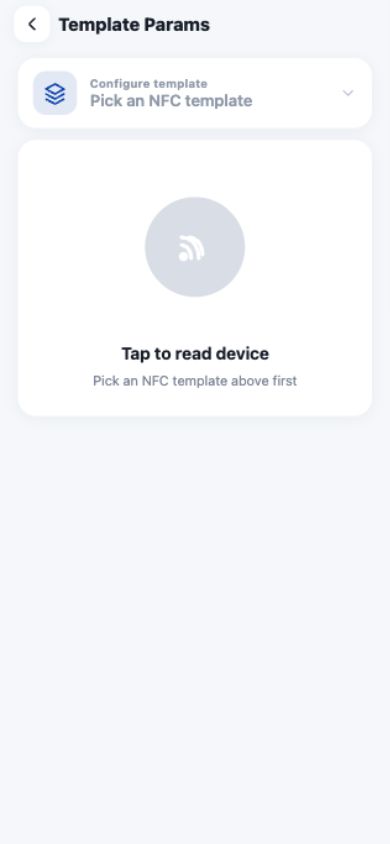
- Tap Pick an NFC template.
- Select the template that matches the target device model and purpose.
- Tap the read action and hold the phone's NFC antenna near the device's NFC area.
- Wait for the read to complete, then review and edit the values.
- Keep the phone and device still during the write until a success message appears.
- Read the device again and confirm that every stored value matches the intended configuration.
Verify before writing
An incorrect template or value may change device behavior. Verify the device model, template name, value format, and target values before writing.
Device Firmware Upgrade
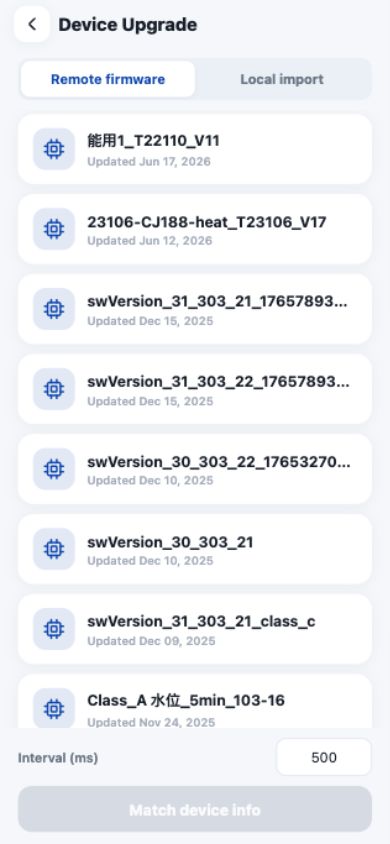
- Select Remote firmware or Local import.
- Select the correct firmware and review settings such as the displayed polling interval.
- Tap Match device info to identify the device over NFC.
- Verify the device model, hardware revision, current version, and target version.
- Start the upgrade only after all information matches.
- Wait for success, then verify device startup and communication according to the field procedure.
Firmware upgrade
Incompatible firmware may make a device unusable. Always complete device matching first. Do not move the phone, exit the app, disable NFC, or lock the screen during an upgrade. If interrupted, do not blindly retry; contact an administrator for device-status and recovery guidance.
LoRa Parameters
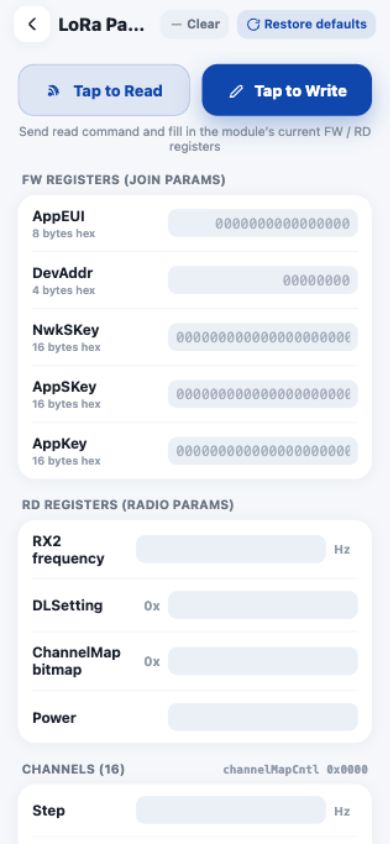
- Tap the read action to load the current FW/RD registers.
- Validate the hexadecimal format and length of AppEUI, DevAddr, NwkSKey, AppSKey, and AppKey.
- Configure RX2, DLSetting, transmit power, and channel frequencies according to the network plan.
- Use Apply to all when every channel requires the same data rate.
- Tap the write action and maintain NFC contact.
- Read the device again and verify every field after the write.
Network configuration
Incorrect identifiers, keys, frequencies, data rates, or power can prevent network join or violate the regional radio plan. Use only parameters approved by the network administrator, and never expose real keys in documents, screenshots, or chat.
Cloud Templates
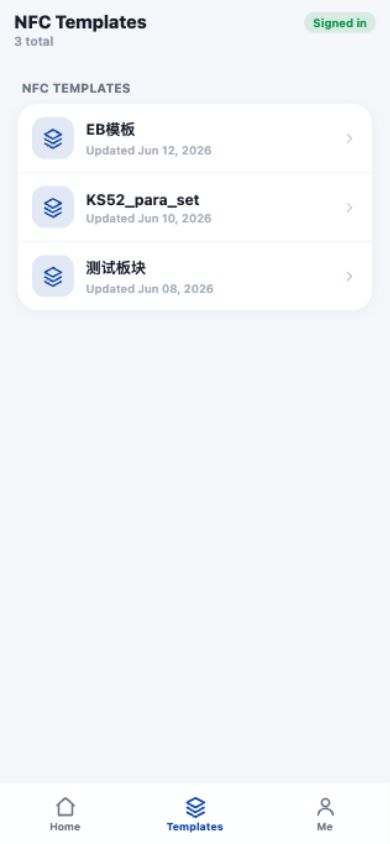
Entry: bottom tab Templates.
After sign-in, the page lists NFC templates available to the active organization and their update times. Open a template to review its RPC or parameter definitions.
If the list is empty:
- Confirm that the account is still signed in.
- Verify the active organization.
- Check the server and network connection.
- Sign out and sign in again, then allow templates to synchronize.
Account and Organization
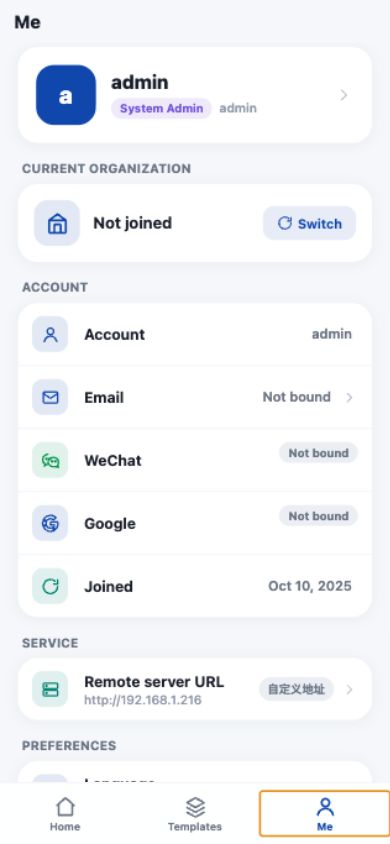
Entry: bottom tab Me.
- View or switch the organization under Current organization.
- Verify the remote endpoint under Service.
- Switch Chinese or English under Language.
- Tap Sign out after field work.
Switching organizations changes the visible templates and other cloud resources. Return to Templates afterward and confirm that the required template belongs to the active organization.
Troubleshooting
Cannot sign in
Confirm that the phone can reach the server supplied by your administrator, verify the server URL, and re-enter the authorized credentials. Do not send credential screenshots through a public channel.
No templates appear
Sign in again and confirm the active organization, then check server connectivity and template permission. If the list remains empty, ask the organization administrator whether the template has been published.
NFC device is not detected
Confirm that the phone supports NFC and that NFC is enabled. Move the phone to locate its antenna, hold it near the device's NFC area, and remove thick cases or metal accessories that may interfere.
Parameter read or write fails
Keep both devices still and read again. Verify the template, field format, and parameter length. Always read back after a successful write.
Upgrade is interrupted
Do not immediately write the firmware again. Record the device model, original version, target version, and interruption stage, then ask an administrator for device-status and recovery steps.