ThinkLink and EMQX TLS Certificate Configuration
tkl-tls 2.0.0 is only for ThinkLink installations already completed using Docker. It uses Nginx inside ThinkLink and native EMQX HTTPS. No host Nginx installation is needed.
Configuration, certificate renewal, and rollback briefly recreate both ThinkLink and EMQX. Perform these operations during a maintenance window.
1. Download and start
Download the complete tkl-tls package, including the tool and Chinese/English illustrated Word/PDF manuals. For the command-line tool alone, download the tar.gz package.
Extract the package on the server, enter tkl-tls-2.0.0, and run:
sudo bash tkl-tls.shFor an offline server, download on a connected computer and transfer the package first.
2. Configure HTTPS with the wizard
Place the certificate files on the server, for example under /root/tls-input/, then enter:
- Hostname: a name covered by the certificate, such as
iot.example.com. - Certificate path: the full PEM certificate chain, such as
/root/tls-input/fullchain.pem. - Private-key path: the matching unencrypted PEM key, such as
/root/tls-input/privkey.pem. - Review the configuration and type YES.
Both endpoints share the hostname and certificate by default. After configuration, open:
- ThinkLink:
https://iot.example.com - EMQX management:
https://iot.example.com:18084
3. Ports and certificates
| Port | Purpose | Configuration |
|---|---|---|
| 443 | ThinkLink web/API HTTPS | Configured by tkl-tls |
| 18084 | EMQX management HTTPS | Configured by tkl-tls |
| 18083 | Existing EMQX management HTTP | Retained |
| 8883 | Device MQTTS | Configure the ssl listener in EMQX Web |
| 8084 | Device WSS, path /mqtt | Configure the wss listener in EMQX Web |
Management HTTPS and device MQTTS/WSS are configured separately. The device WSS URL is wss://iot.example.com:8084/mqtt. The tool retains existing HTTP/MQTT endpoints; it does not configure device listeners or change application MQTT addresses.
Allow the ports you use in the security group and firewall; see the installation port table.
One certificate can cover several ports. If hostnames differ, the certificate SANs must cover all of them. For a private CA, configure browser/device trust and add --ca-file to the command below.
4. Optional command-line settings
Use command-line options for separate hostnames, certificates, or custom ports:
sudo ./tkl-tls apply --thinklink-domain iot.example.com --cert /root/tls-input/fullchain.pem --key /root/tls-input/privkey.pem| Option | Purpose |
|---|---|
--emqx-domain emqx.example.com | Use another EMQX hostname |
--emqx-cert and --emqx-key | Use a separate EMQX certificate/key; provide both |
--ca-file /root/tls-input/root-ca.pem | Use a private CA |
--thinklink-port 8443, --emqx-port 18443 | Change host HTTPS ports; update access URLs and network rules accordingly |
See the bundled README for additional options. Retain any custom Compose path, service names, or --root in later operations.
5. Renewal and rollback
Check status:
sudo ./tkl-tls statusReplace management certificates:
sudo ./tkl-tls apply --cert /root/tls-input/new-fullchain.pem --key /root/tls-input/new-privkey.pemSaved hostnames and ports are retained. Supply --ca-file again for a private CA. Supply --emqx-cert and --emqx-key again for a separate EMQX certificate; otherwise EMQX shares the new ThinkLink certificate.
To undo the preceding operation when needed:
sudo ./tkl-tls rollbackRenewal and rollback also briefly recreate both services. Update device listener certificates uploaded through Web separately.
6. EMQX Web setup for device MQTTS/WSS
The four images below are actual EMQX 5.8.8 screenshots of the English UI. They show device listener certificate upload, not configuration of management HTTPS on 18084.
Port 8883 is not published by default. Before using device MQTTS, have the deployment operator configure the mapping and firewall and protect persistent data. EMQX Web cannot change Docker mappings; coordinate Compose changes after TLS setup with the tool's drift protection.
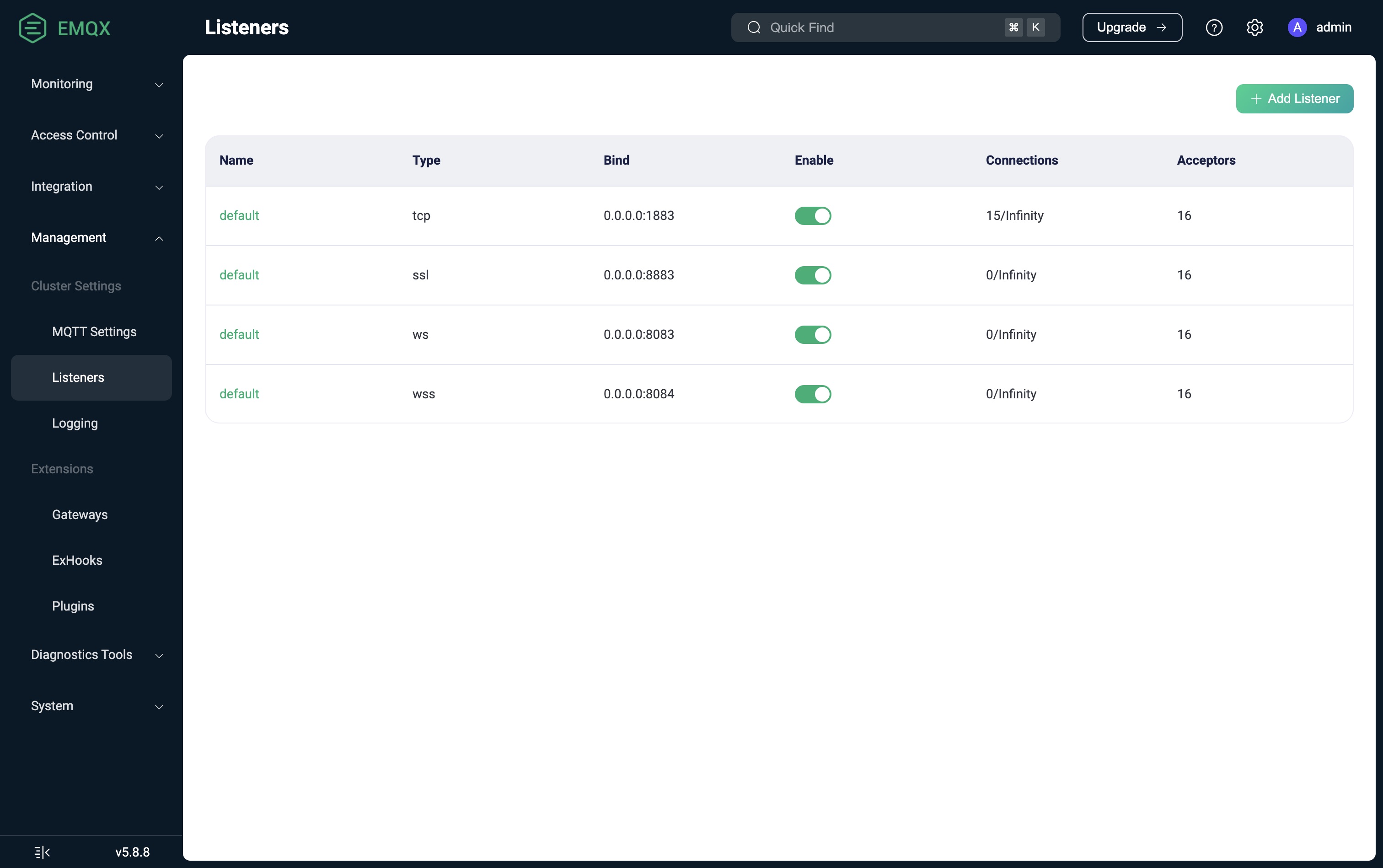
6.1. Sign in and select the ssl listener
Sign in at the configured https://iot.example.com:18084, then open Management → Listeners. Select default on the row with type ssl and port 8883; several rows share the name default. Retain the original tcp 1883 and ws 8083 listeners.
6.2. Check binding and authentication
Keep Bind at 0.0.0.0:8883. For ordinary one-way TLS, leave Verify Peer off. This means no client certificate is required; clients must still verify the server certificate, and existing username/password authentication and access rules remain in effect.

6.3. Upload the certificate and key
Click Reset for both TLS Cert and TLS Key, then Select file. Upload fullchain.pem and privkey.pem respectively from the computer running the browser. These are local file pickers, not fields for server paths such as /root/tls-input/.

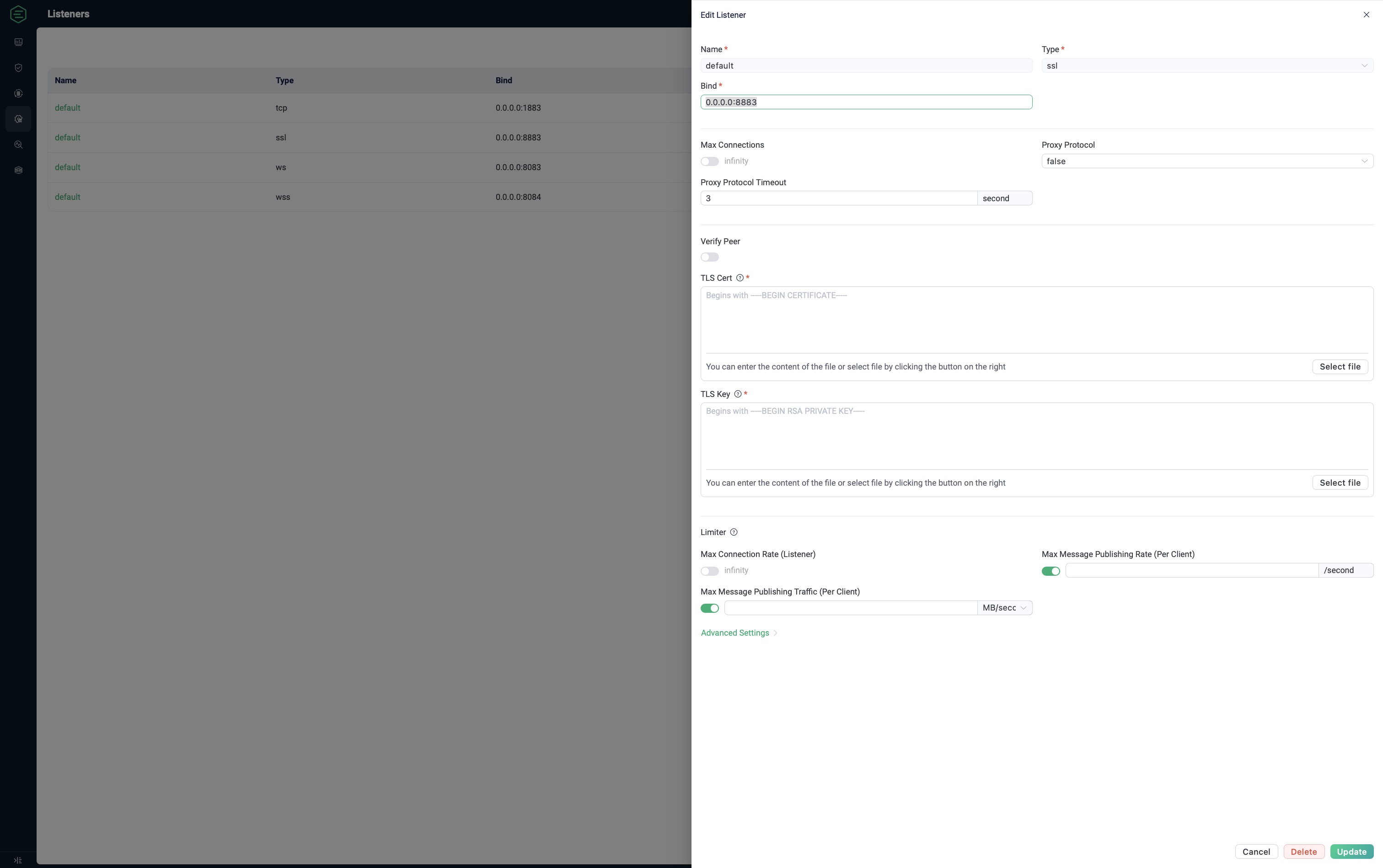
Upload the matching unencrypted PEM key, retain other existing settings, and click Update. If EMQX reports a missing or invalid certificate/key, complete both fields and resolve the error. Reopen the listener and check the saved persistent file paths.
6.4. Verify and configure WSS
Use a device or MQTTX with a certificate-covered hostname and MQTTS port 8883. Enable TLS and server certificate verification, and import the private CA into client trust when needed. Keep existing credentials and use an authorized test topic to verify connection, subscription, publication, message receipt, and reconnection. After a maintenance restart or recreation, recheck certificates, configuration, and messaging to verify persistence.
For WSS, select default with type wss, usually bound to 0.0.0.0:8084, and use path /mqtt. Upload a matching hostname certificate/key, confirm the port mapping, and test wss://iot.example.com:8084/mqtt. A TLS handshake alone does not prove MQTT authentication or messaging works.
Device certificate renewal requires another upload and verification. Management HTTPS apply does not replace these files. To recover device TLS, restore the previously backed-up listener configuration and certificate, then verify real messages again.
7. FAQ
| Question | Action or answer |
|---|---|
| Do I need to install Nginx? | No. The tool uses ThinkLink container Nginx and native EMQX HTTPS. |
| Does it upgrade ThinkLink? | No. It configures TLS and retains current images and data. |
| Why is 18083 still HTTP? | Management HTTPS uses 18084; the original HTTP endpoint is retained. |
| Why do devices still receive the old certificate? | Management renewal does not replace device listener certificates. Update them separately in EMQX Web. |
| Certificate error? | Check hostname, full chain, matching key, and validity. Configure client trust for a private CA. |
| Cannot connect from outside? | Check DNS, Docker port mappings, security groups, and firewall rules. |
Recovery and configuration files
The tool attempts rollback if configuration fails. If power loss or forced termination leaves a pending.json warning, run sudo ./tkl-tls rollback first. Review any reported external Compose changes.
Keep /opt/tkl-tls: it contains keys, configuration backups, and persistent data. Do not delete it or upload it as logs. Do not use docker compose down -v or docker volume prune for certificate troubleshooting. Saving Compose in JSON format is normal.
Existing 1.0 gateway installations
Roll back with the old tool to release its ports before using 2.0.0. Do not reuse the old state directory. The old complete package and old tool package are for historical recovery only.
8. After configuration
Open both HTTPS management URLs and verify browser certificates, login, and file upload/download. If using device MQTTS/WSS, also verify authentication, publication/subscription, and reconnection with devices or MQTTX. Configure application MQTT addresses and file links for the actual deployment.