System Config
System Platform → System Config centrally maintains the basic infrastructure of the whole deployment: email outbound, third-party login, brand identity, and the cross-deployment data-sync secret. For a standalone deployment (TKG/TKE/Docker), this is the first page you should configure.
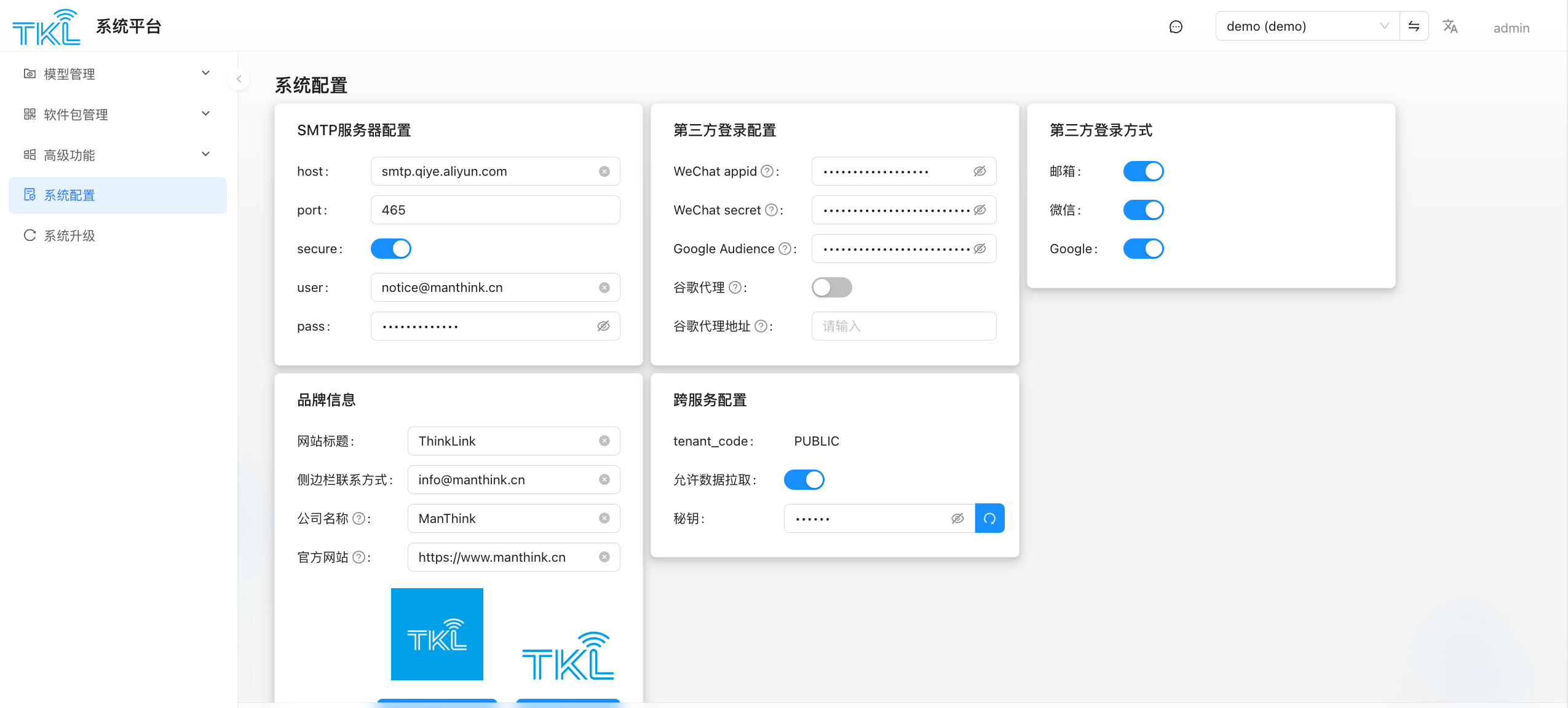
The page groups settings for email, login, object storage, branding, and network services.
Organization Service Permissions (since 2.00.077)
System administrators can separately allow ModbusTcpServer and BACnet for all organizations in this deployment. Organization administrators are also subject to these switches. Third-party MQTT is unaffected.
| Action | Service and page behavior |
|---|---|
| Disable and save | Stops the service and hides its entry. Point-table access, configuration changes, and service starts are unavailable. Existing configuration and point tables are retained. |
| Allow again and save | Restores access without starting the service automatically. An organization administrator must click Restart in Server Configuration. |
Other open pages update their entries on refresh, organization navigation, or window focus. If saving reports a shutdown failure, check the running status and retry.
Saving configuration does not change the actual service running status. See Upgrade Notes for related feature changes.
SMTP Server Config
The outbound mail server for the entire deployment (registration verification, forgotten passwords, alarm notifications all flow through here).
| Field | Meaning |
|---|---|
| host | SMTP server address, e.g. smtp.qiye.aliyun.com |
| port | Port, commonly 465 (SSL) / 587 (STARTTLS) / 25 |
| secure | Whether to use SSL/TLS. Usually on for 465, situational for 587 |
| user | Login username (sender email) |
| pass | Login password or authorization code |
Submit at the bottom to save. To verify, have a test account trigger a "registration verification email".
Third-Party Login Config
Holds the credentials issued by third-party platforms. This section is only the credentials — whether users can actually log in this way is controlled by the "Third-Party Login Methods" switches on the right.
| Field | Meaning |
|---|---|
| WeChat appid | AppID issued by WeChat Open Platform |
| WeChat secret | Corresponding AppSecret on WeChat Open Platform |
| Google Audience | Audience (client_id) of the Google OAuth client |
| Directory Proxy | Whether to route traffic through a proxy for external services (e.g. Google OAuth) |
| Directory Proxy Address | Proxy server address |
Third-Party Login Methods
Three switches that decide which login entries the login page exposes:
| Switch | Meaning |
|---|---|
| Email + password (most common) | |
| WeChat QR-code login (depends on the WeChat appid/secret above) | |
| Google account login (depends on Google Audience) |
Turning off a switch immediately removes the corresponding entry from the login page.
Report Object Storage Config
The current Docker installer and matching ThinkLink image include the MinIO connection settings. The private thinklink bucket is created automatically on first startup. Object storage is ready to use after a fresh installation; no configuration on this page is required. See Docker Deployment: Built-in Object Storage for installation and verification.
The following non-sensitive defaults describe the current matching release. They are reference values, not required post-installation steps:
| Field | Current default and description |
|---|---|
| endPoint | 127.0.0.1, the backend connection address in the matching deployment. |
| port | 9000, the S3 API port. |
| useSSL | false; the default internal connection uses HTTP. |
| bucket | thinklink, initialized automatically by the MinIO image. |
| presignedExpirySeconds | 604800 (7 days), the download link lifetime in seconds. |
Access credentials are preset by the matching release and are not listed in the public manual. This page retains object storage settings for custom deployments following their delivery instructions. Standard Docker installations use the preset configuration.
Presigned expiry controls link validity; report retention days in organization management are a separate setting. See Report Records. Generate a report and open or download its file to verify storage functionality.
Brand Info (Crucial for White-Label Standalone Deployments)
When delivering a white-labeled deployment to a customer, edit this section to rebrand the entire platform:
| Field | Meaning |
|---|---|
| Site Title | Browser tab, page header, login page main title. Default ThinkLink |
| WeChat Contact | Contact WeChat shown in the page footer |
| Company Name | Company entity shown in the footer |
| Official Website | Footer company link |
| Logo Images (two) | Login-page main logo + top sidebar logo. Click to upload |
TIP
After saving, currently-open pages need to be refreshed to see the new logo and title.
Network Service Config
Open this if you want others to pull from you
This section provides server-side admission for Remote Data Pull. If this deployment will not be pulled by any downstream node, you can leave it off.
| Field | Meaning |
|---|---|
| tenant_code | The exposed tenant scope identifier, defaults to PUBLIC. Downstream pullers must use the same value |
| Allow Data Pull | Master switch. When off, all external pull requests are rejected |
| Secret Key | The secret a downstream must present to pull. Click the button on the right to regenerate |
For the matching usage, see Remote Data Pull.
If the secret leaks
If you suspect the secret_key has leaked, click "Regenerate" immediately to rotate it, then notify every legitimate downstream to update their pull config.
2.00.073 MinIO Migration Compatibility
Upgrades preserve existing object-storage settings without automatically filling in defaults. For custom object storage, verify connection settings and the bucket, then test uploads. New Docker installations are initialized using the settings provided by the installer. See System Upgrade.