Connect gwTool6/gwTool7 Gateways to ChirpStack with Basic Station
This guide connects ManThink gateways to ChirpStack through LoRa Basics Station LNS. GD61/GD61x uses gwTool6; GDI51, GDO51 and GDI52 use gwTool7. The historical WebServer workflow for old GDI51/GDO51 batches remains available in GW-AN08. The gwTool6 v1.0.3 procedure has been checked against the current interface and source, but no configuration was saved, no driver was switched, and no platform connection was tested on the documentation gateway.
Scope and prerequisites
Prepare the following:
- The gateway EUI, factory region, and operating frequencies.
- An account that can manage the ChirpStack tenant and gateway.
- A ChirpStack Gateway Bridge with its Basic Station backend enabled.
- A
wss://<hostname>:<port>endpoint reachable from gwTool6; gwTool7 can usews://only on an isolated test network and only when the delivered firmware supports it. - The server-certificate trust chain for that hostname.
- Authentication material required by the deployment, plus a backup management path that remains available during a LoRa driver change.
The ChirpStack vendor combination in gwTool6 offers Semtech UDP and BasicStation LNS. It does not offer ChirpStack CUPS or MQTT. This guide uses BasicStation LNS.
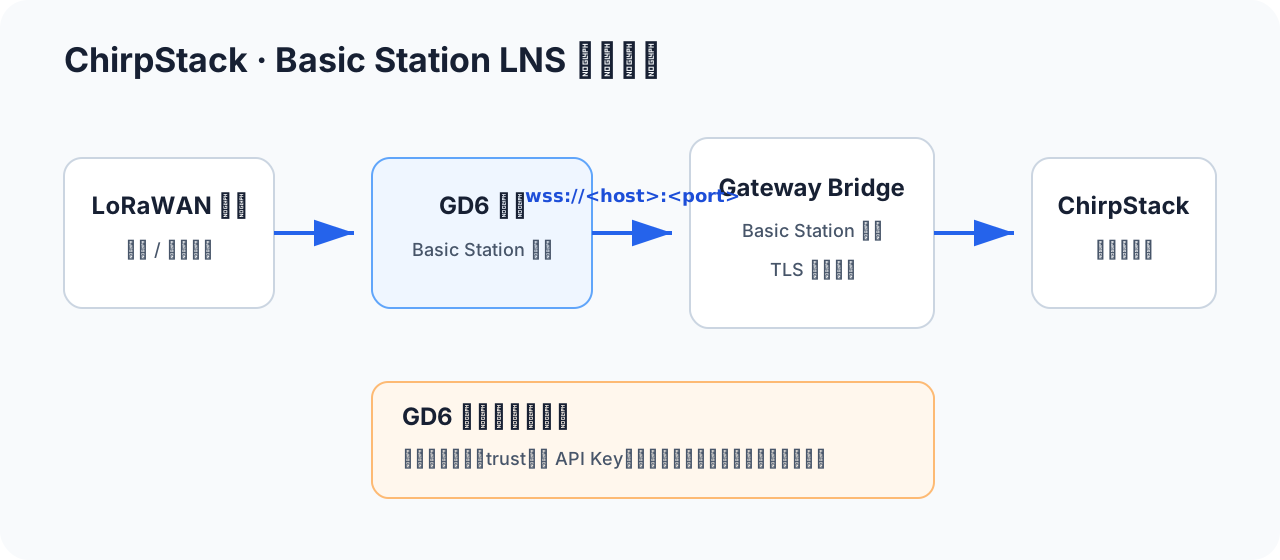
Configure ChirpStack Gateway Bridge
Complete these tasks on the server side:
- Set the Gateway Bridge backend to Basic Station and configure its listener.
- Configure router settings that match the gateway hardware, region, and operating frequencies.
- For public or routed networks, enable server TLS and install the server certificate and private key.
- Select an authentication model:
- Server TLS: the gateway validates the server certificate.
- Mutual TLS: the server also validates a client certificate assigned to each gateway.
- No TLS/no authentication: suitable only for an isolated test network and not accepted directly by the current gwTool6 BasicStation LNS form.
- Verify DNS, port, firewall, certificate hostname, and system time.
URI restriction in the current interface
Direct LNS addresses in gwTool6 v1.0.3 must start with wss://; the form rejects plaintext ws://. If Gateway Bridge exposes only plaintext WebSocket, a deployment administrator must add a trusted TLS termination layer and give its wss:// address to the gateway. Do not try to bypass validation through an unrelated field.
Register the gateway in ChirpStack
- Create a gateway under the target tenant.
- Enter the device's 16-digit hexadecimal Gateway EUI as the Gateway ID. Hexadecimal case does not change the value, but leading zeros must be retained.
- Select a region that matches the Gateway Bridge router configuration and gateway RF hardware.
- Save and keep the gateway details or events page open for Last seen and uplink verification.
Never register a sample EUI as a real device or expose the real EUI, token, or private key in a public screenshot.
Gateway configuration
Pre-configuration checks
Record the firmware, region, Gateway EUI, uplink driver, output mode, and server from Overview and LoRaWAN NS. Confirm that no OTA update, configuration write, or critical downlink is in progress.
Basic Station and Packet Forwarder are mutually exclusive. If saving changes the driver, LoRa forwarding cold-restarts and is normally interrupted for about 30–60 seconds. The management page might also need to be reopened.
gwTool6
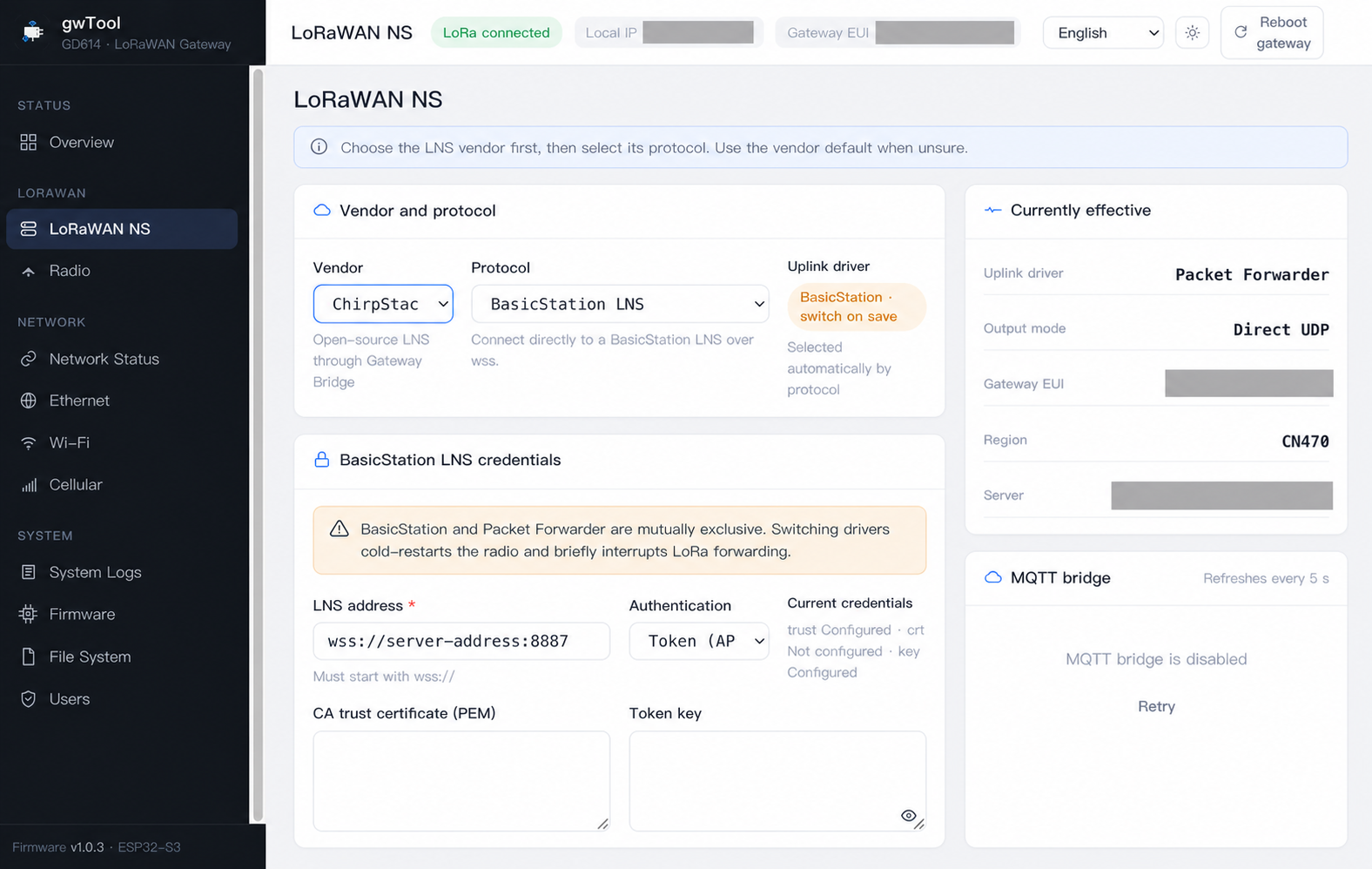
- Sign in to gwTool6 and open LoRaWAN NS.
- Set Vendor to ChirpStack.
- Set Protocol to BasicStation LNS. Confirm that Uplink driver shows BasicStation and “switch on save.”
- Enter the complete
wss://<Gateway-Bridge-hostname>:<port>in LNS address. - In CA trust certificate (PEM), provide the root or required intermediate chain that issued the server certificate.
- Select the authentication mode required by the server deployment and provide only the matching material.
- During a maintenance window, select Save and apply. Wait for forwarding to recover, reopen the page, and verify Currently effective rather than relying on the unsaved form selection.
The screenshot identifies the vendor, protocol, and field locations. Gray masks hide test-environment identifiers. Credential-status badges in the screenshot are not recommended deployment values.
Credentials and deployment variants
| Server-side design | gwTool6 authentication | Required material |
|---|---|---|
| Server TLS without client validation | Token (API key) | Trust is required; enter a token only when a TLS proxy explicitly requires one, otherwise follow the delivered deployment procedure |
| Gateway Bridge mutual TLS | Client certificate | Trust, this gateway's client certificate, and its matching private key |
Plaintext ws:// | Not accepted directly | Add TLS termination in front of the server or use another reviewed protocol |
Native ChirpStack Gateway Bridge Basic Station deployments commonly use server TLS or mutual TLS. Token authentication is usually implemented by a front proxy. Do not put a ChirpStack Web API token, another platform's API key, or a client private key into a similar-looking field.
For mutual TLS, the client identity must follow the Gateway Bridge deployment rules. The platform administrator must confirm certificate CN/Gateway EUI mapping, validity, and rotation.
gwTool7
Applicable models: GDI51, GDO51 and GDI52.
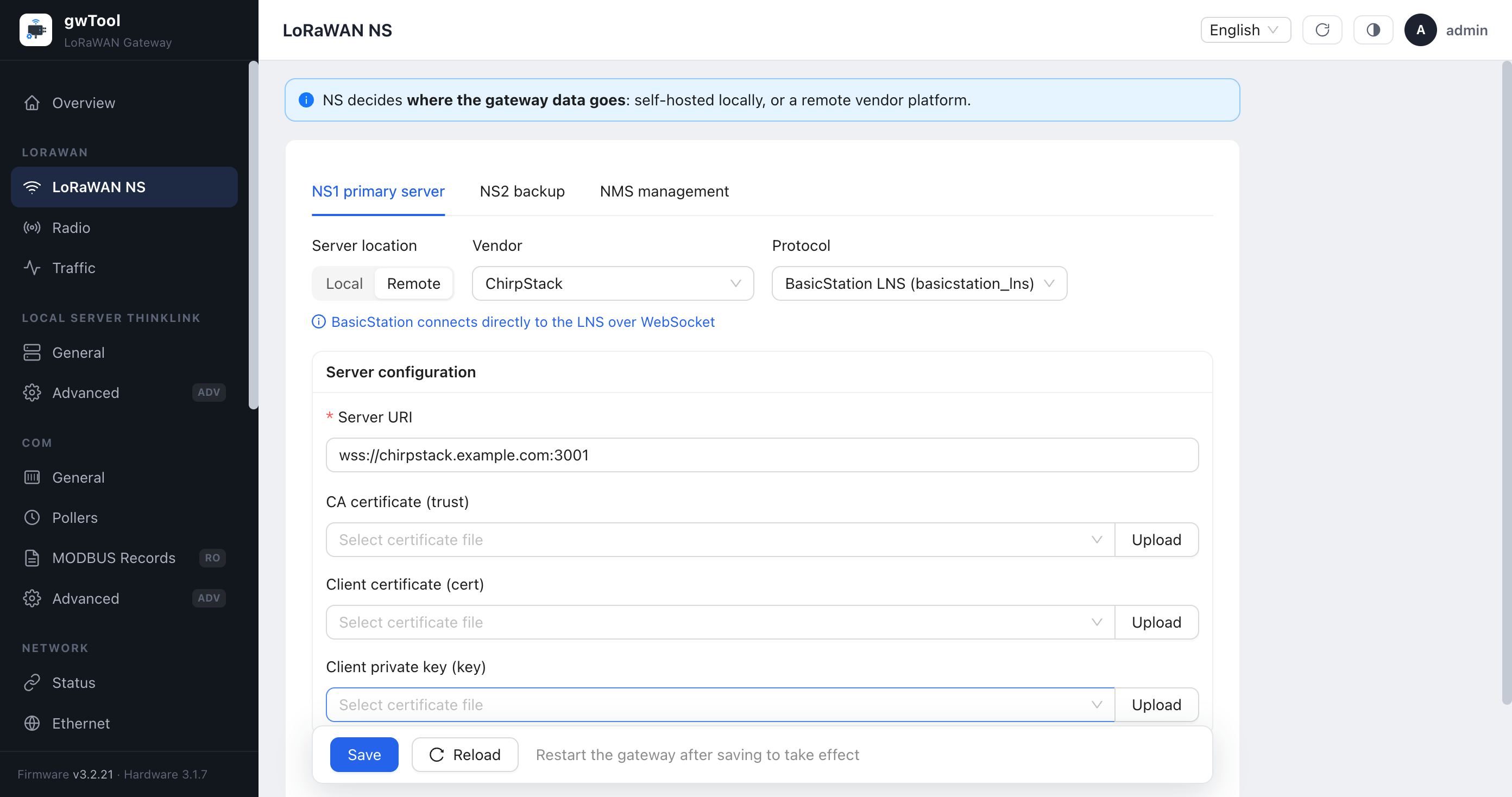
- Sign in to gwTool7 and open LORAWAN → LoRaWAN NS.
- Under NS1, set Server location to Remote, choose ChirpStack as the vendor, and select BasicStation LNS (basicstation_lns).
- Enter the complete
ws://orwss://Gateway Bridge endpoint in Server URI. The screenshot valuewss://chirpstack.example.com:3001is only a syntax example. - For TLS, select or upload the CA that issued the server certificate under CA certificate (trust). Mutual TLS additionally requires this gateway's client certificate and client private key.
- Save, wait for the service to recover, reload the page and confirm that protocol, endpoint and certificate state did not revert.
Firmware variations
Vendor, certificate and secondary-NS controls differ between gwTool7 firmware deliveries. A visible control is not proof that its value is active; verify on both the traffic page and ChirpStack.
Verify the connection
- Wait for the driver change. In gwTool6, verify Basic Station and the target server under Currently effective; in gwTool7, reload LoRaWAN NS and confirm the protocol, endpoint, and certificate state did not revert.
- Check System Logs; in gwTool7, also open LORAWAN → Traffic. Confirm there are no DNS, WebSocket, TLS, certificate, or system-time errors.
- Confirm that Last seen/online time starts updating in ChirpStack.
- Trigger a known end-device uplink and verify its EUI, region, frequency, and time in ChirpStack gateway events.
- During an approved maintenance window, send one controlled downlink and confirm both directions use the same gateway.
Treat the integration as complete only after platform online state, a known uplink, and a controlled downlink all succeed. A selectable form option or successful save alone does not prove connectivity.
Troubleshooting
| Symptom | Checks |
|---|---|
| The gwTool6 page rejects the LNS address | Use a complete wss:// URI; gwTool6 v1.0.3 does not accept ws:// |
| WebSocket cannot connect | DNS, port, firewall, reverse-proxy path, and the Gateway Bridge Basic Station listener |
| TLS handshake fails | Gateway time, server-certificate hostname, trust chain, and certificate validity; for mutual TLS also check the client certificate and key |
| Connection is immediately rejected | Server authentication mode, client identity mapping, and any token required by the proxy |
| Gateway is online but has no uplink | Gateway EUI, region, eight frequencies, router configuration, antenna, and end-device channel plan |
| Uplink works but downlink fails | ChirpStack/Gateway Bridge logs, receive windows, network latency, time synchronization, and transmit frequency |
| Packet Forwarder remains or values revert after saving | Wait 30–60 seconds and reread the page; check delivered-firmware support, the save result, and logs instead of repeatedly rebooting |
Official references: ChirpStack gateway configuration and Gateway Bridge configuration.