Connect gwTool6/gwTool7 Gateways to TTN / The Things Stack with Basic Station
This guide covers two LoRa Basics Station paths from ManThink gateways to The Things Stack (TTN): recommended CUPS and direct LNS. GD61/GD61x uses gwTool6; GDI51, GDO51 and GDI52 use gwTool7. The old GDI51/GDO51 WebServer procedure remains available in GW-AN09. The gwTool6 v1.0.3 procedure has been checked against the current interface and source, but no configuration was saved, no driver was switched, and no platform connection was tested on the documentation gateway.
Register the gateway
- In The Things Stack Console, create a gateway and enter the device's 16-digit hexadecimal Gateway EUI.
- Select a Frequency Plan that matches the gateway RF hardware, factory region, and operating frequencies.
- Record the Server Address shown in Console. Replace
<server-address>below with that value. - Open gateway Live data for connection and packet verification after configuration.
Official overview: LoRa Basics Station.
Choose LNS or CUPS
- LNS carries LoRaWAN uplink and downlink traffic. Its address is normally
wss://<server-address>:8887. - CUPS is the configuration and update connection. Its address is normally
https://<server-address>:443; it delivers the LNS URI, trust chain, and LNS credential. - gwTool6 defaults to CUPS for the TTN vendor. Direct LNS can be used when centralized configuration is not required.
- CUPS and LNS API keys have different rights and are not interchangeable.
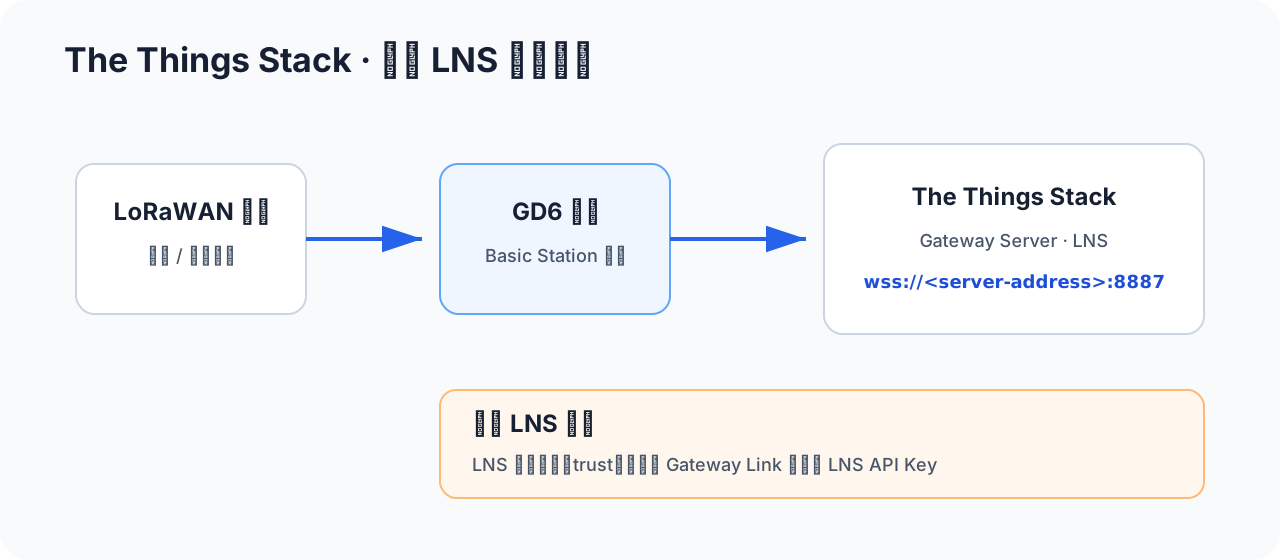
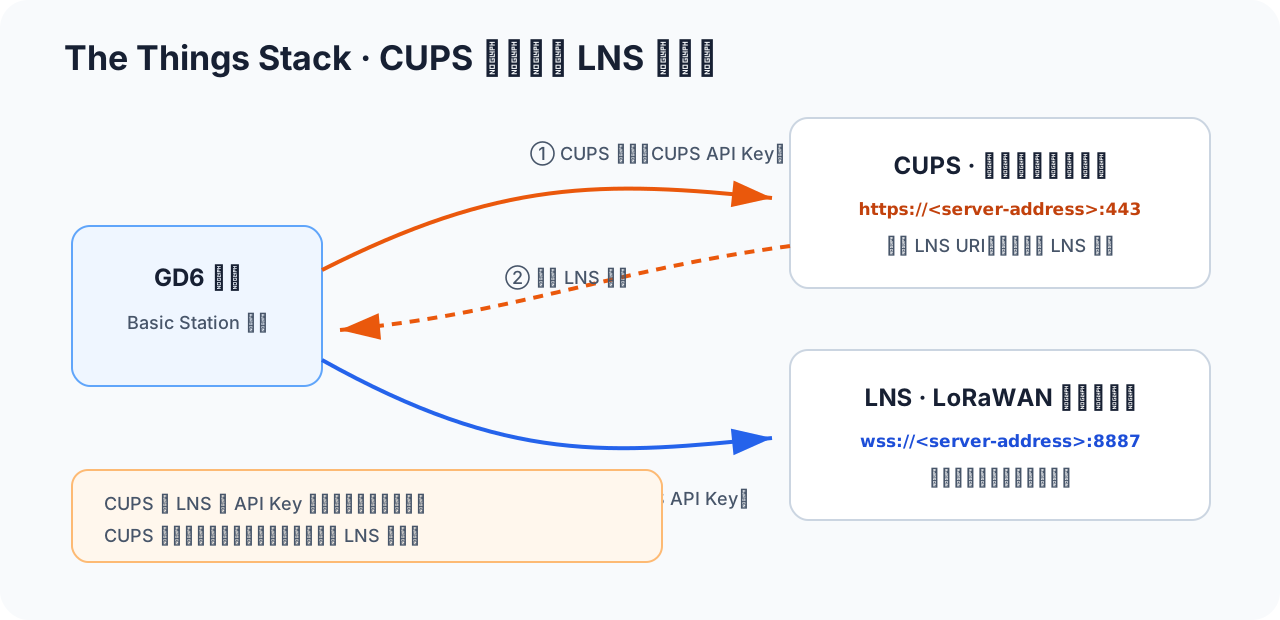
CUPS can overwrite LNS settings
Configuration returned by CUPS takes precedence over local LNS values. When moving from CUPS to direct LNS, the saved result must clear the old CUPS URI. Reread the configuration and confirm CUPS is no longer active; otherwise, the gateway can continue obtaining configuration from CUPS.
Prepare LNS credentials
- Create an LNS API key for this gateway with only Link as Gateway to a Gateway Server for traffic exchange permission.
- Use
wss://<server-address>:8887as the LNS address. - Download the PEM root certificate that matches the Server Address from The Things Stack Root Certificates page.
- Format the API key as a complete Authorization line ending in CRLF:
Authorization: Bearer <LNS-API-Key>\r\nTrust and Token key are separate fields in gwTool6. Do not enter the API key as a client private key or upload real credentials to a ticket or public document.
Prepare CUPS credentials
Complete this section only when using CUPS:
- Create a CUPS API key with the required rights to view gateway information, edit basic gateway settings, and retrieve gateway secrets.
- Keep the LNS API key from the previous section; the two keys are not interchangeable.
- Store the LNS API key as LoRa Basics Station LNS Authentication Key in the gateway General Settings so CUPS can deliver it as the LNS credential.
- Use
https://<server-address>:443as the CUPS address. - Prepare the root certificate for the Server Address and format the CUPS API key as an Authorization line ending in CRLF:
Authorization: Bearer <CUPS-API-Key>\r\nOfficial procedures: LNS, CUPS, and root certificates.
Gateway configuration
Pre-configuration checks
Record the firmware, region, Gateway EUI, current driver, output mode, and server from Overview and LoRaWAN NS. Confirm that the management path remains available during a LoRa driver change and avoid OTA, configuration writes, and critical downlink activity.
Semtech UDP uses Packet Forwarder; LNS/CUPS uses Basic Station. The drivers are mutually exclusive, and a change cold-restarts LoRa forwarding for about 30–60 seconds.
gwTool6
Applicable models: GD61/GD61x.
Use CUPS (recommended)
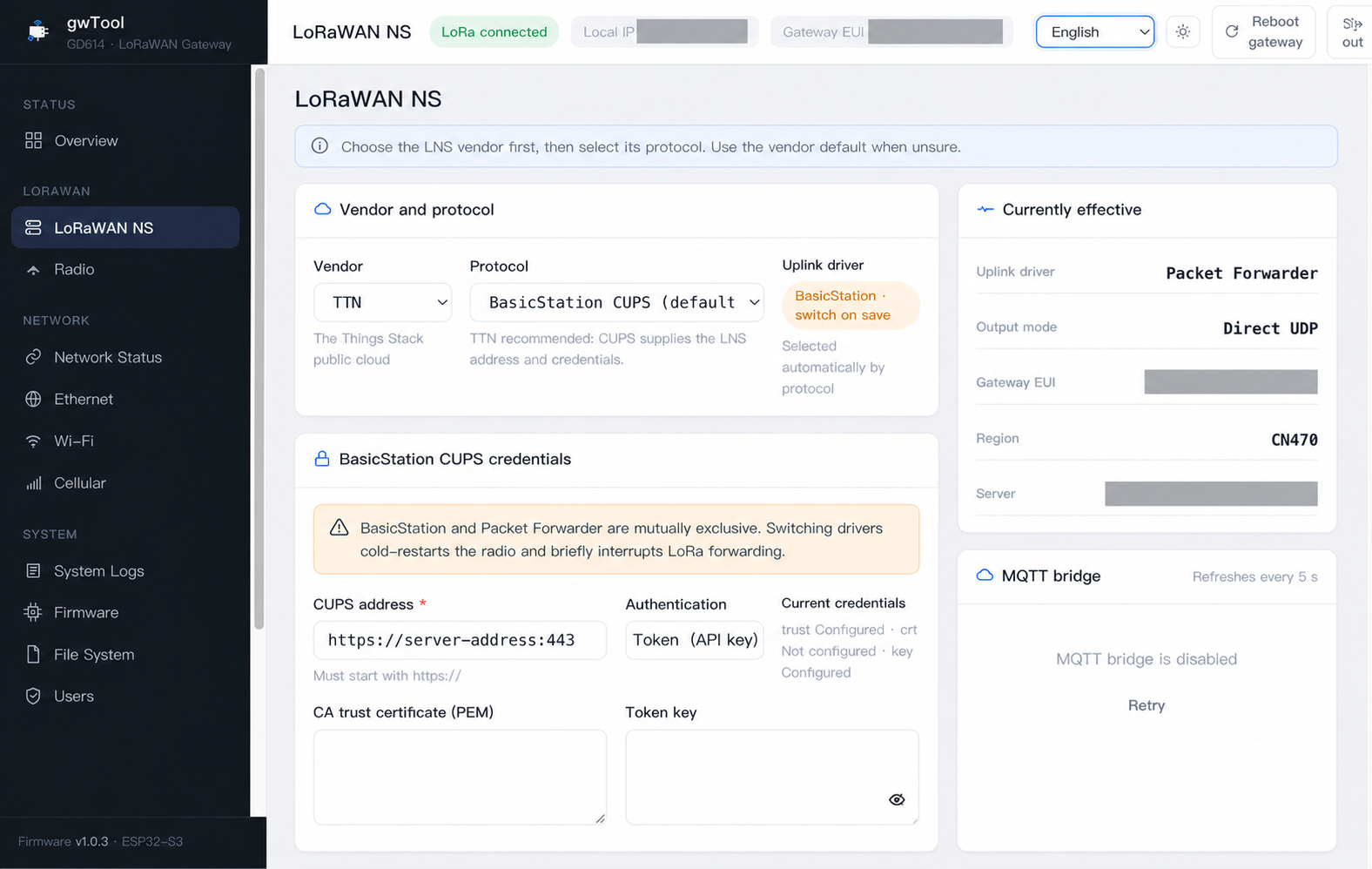
- Open LoRaWAN NS and set Vendor to TTN.
- Set Protocol to BasicStation CUPS (default).
- Enter
https://<server-address>:443in CUPS address. - Select token authentication. Put the matching PEM root certificate in Trust and the complete CUPS Authorization line in Token key.
- During a maintenance window, select Save and apply and wait for LoRa forwarding to recover.
- Reopen the page and check System Logs to confirm CUPS returned an LNS URI, trust chain, and LNS credential.
- Verify connection events and uplinks in TTN Console Live data.
server-address in the screenshot is a format placeholder, and gray masks hide test-environment identifiers. Credential-status badges only indicate that the device already has material; they are not the values for this procedure.
Use direct LNS
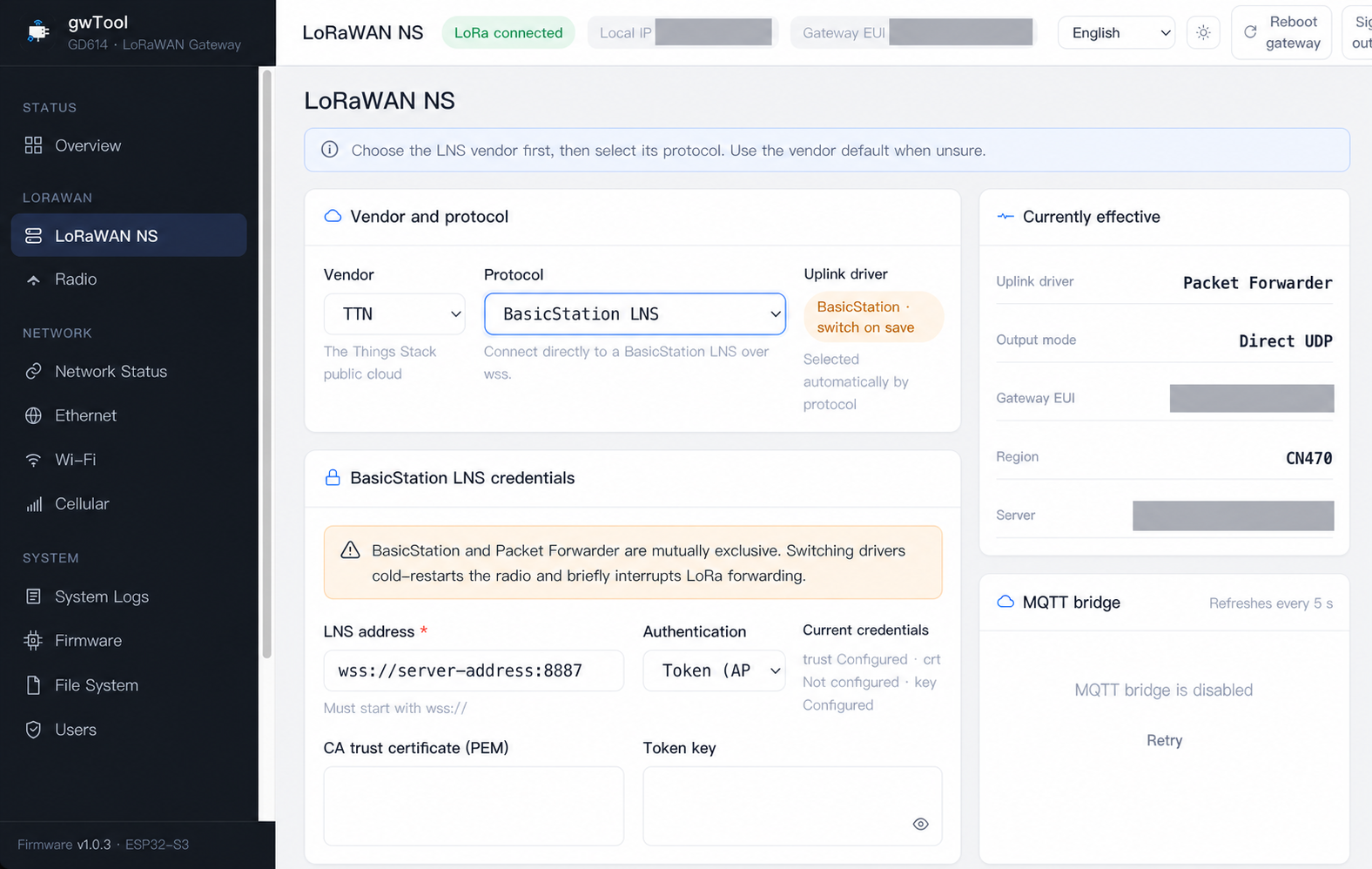
- Set Vendor to TTN and Protocol to BasicStation LNS.
- Enter
wss://<server-address>:8887in LNS address. - Select token authentication. Put the matching PEM root certificate in Trust and the complete LNS Authorization line in Token key.
- If the device previously used CUPS, confirm that this save clears the old CUPS URI.
- Select Save and apply, wait for recovery, then reread the page. Confirm direct LNS is currently effective rather than the old CUPS configuration.
- Verify the connection, uplink, and a controlled downlink in Live data.
Typical TTN cloud deployments use server TLS plus an API key and do not need a gateway client certificate. Select client-certificate authentication only when the target deployment explicitly requires mutual TLS, using the certificate and key supplied for that deployment.
gwTool7
Applicable models: GDI51, GDO51 and GDI52.
Direct LNS:
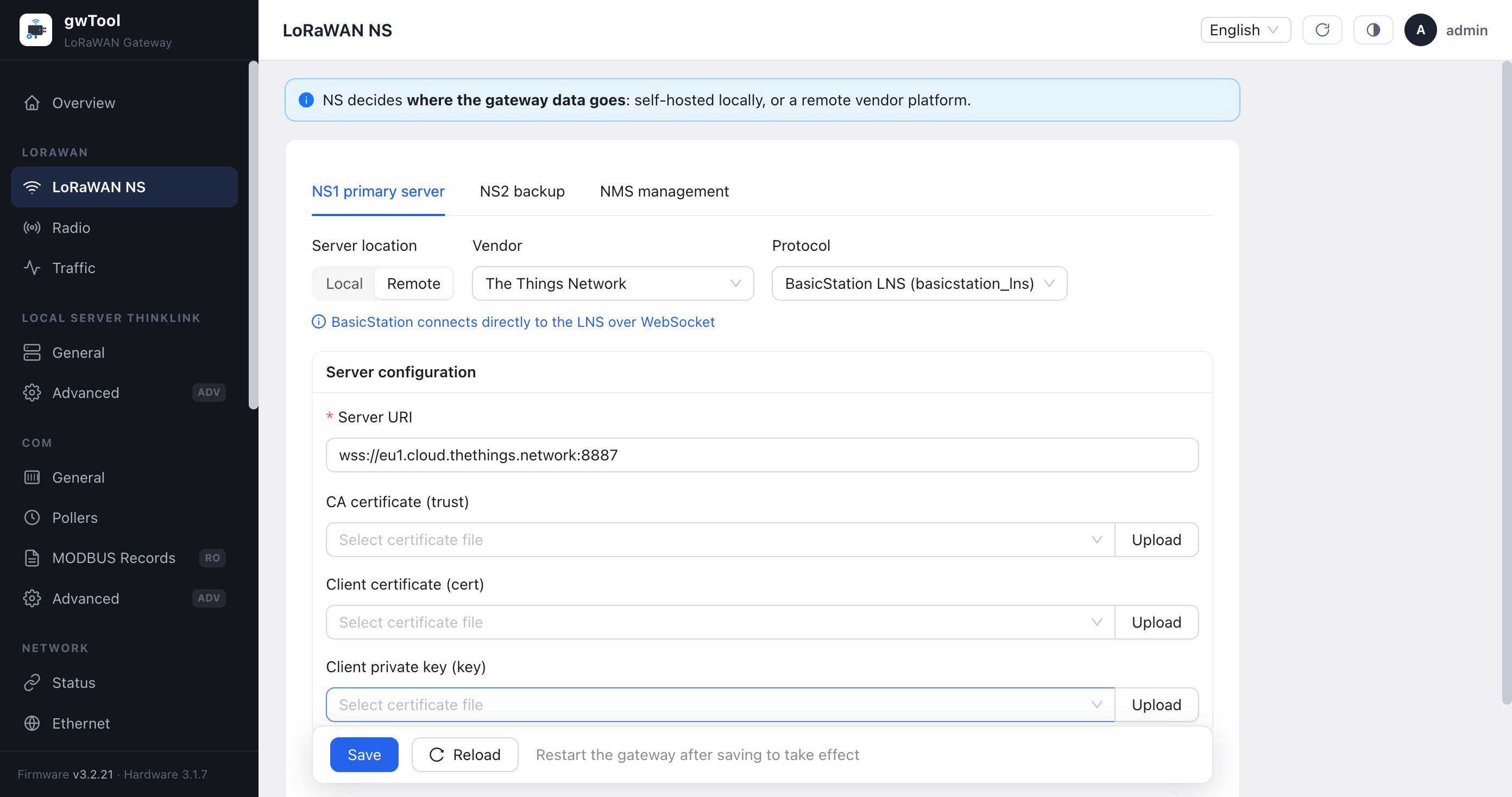
- Open LORAWAN → LoRaWAN NS. Under NS1, set Server location to Remote, select The Things Network as the vendor, and choose BasicStation LNS (basicstation_lns).
- Enter
wss://<server-address>:8887in Server URI. The screenshot useseu1.cloud.thethings.networkto demonstrate the format; replace it with the Server Address shown in the TTN Console. - Configure the matching trust PEM and LNS key. If the delivered firmware has no Authorization/Key control, do not place the API key in the client-private-key field; contact technical support for the credential-import method supported by that firmware.
CUPS:
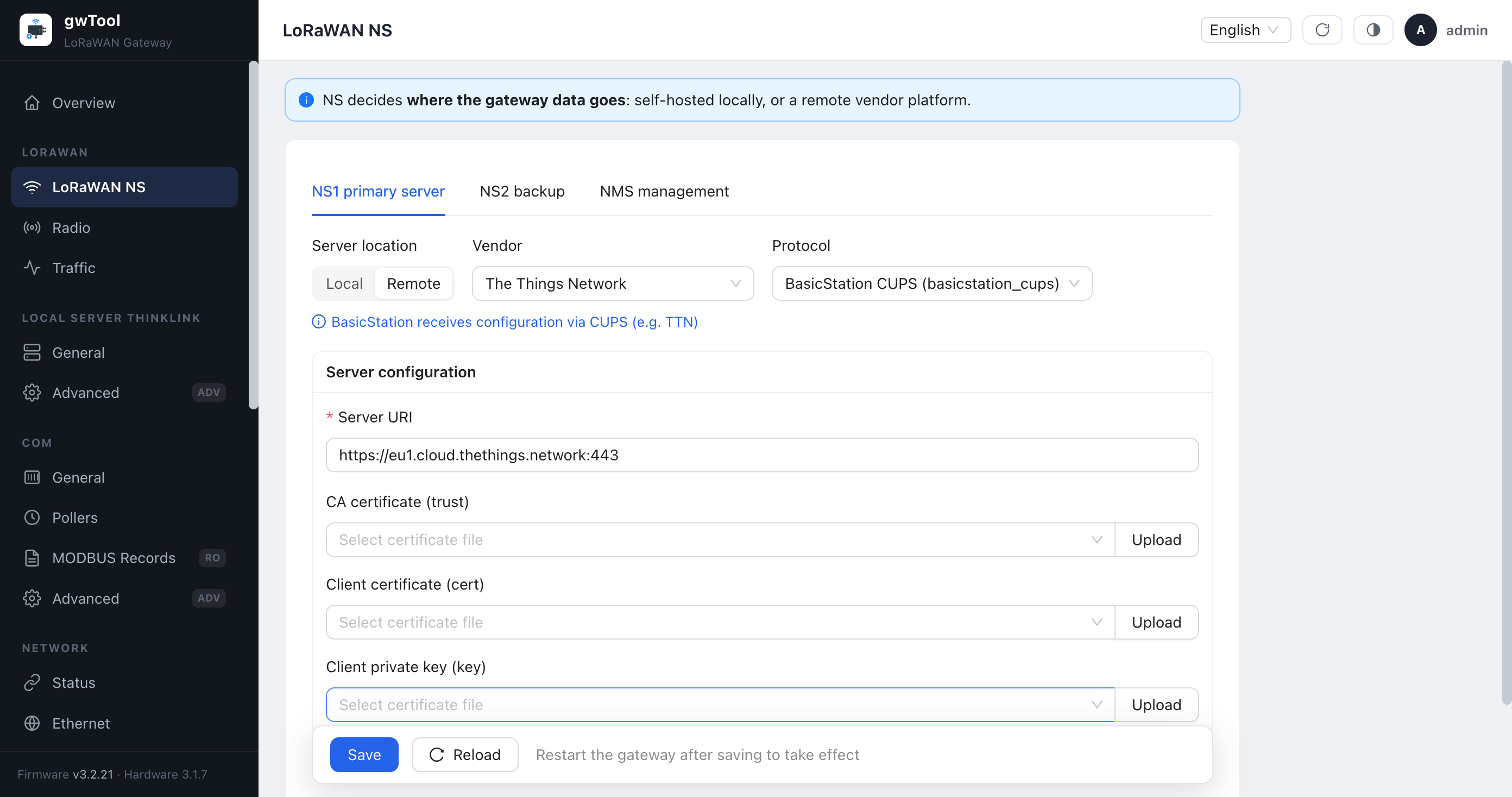
- Keep The Things Network selected and change Protocol to BasicStation CUPS (basicstation_cups).
- Enter
https://<server-address>:443in Server URI, then configure the matching trust PEM and CUPS key. - Save, wait for CUPS to deliver the LNS settings, and reload the page. Do not overwrite the delivered values with stale local LNS settings.
- Verify the connection and traffic in both Traffic and the TTN Console.
Firmware variations
Certificate, Authorization/Key and CUPS controls vary between gwTool7 firmware deliveries. A CA, client certificate, client private key and TTN API key serve different purposes. If the required Authorization/Key control is absent, do not guess by using a similar field; contact technical support for the credential-import method or approved upgrade path.
Verify the connection
- In gwTool6, confirm Basic Station and the target server under Currently effective; in gwTool7, reload LoRaWAN NS and confirm the protocol, endpoint, and credential state did not revert.
- Check System Logs; in gwTool7, also open LORAWAN → Traffic. Confirm there are no DNS, TLS, Authorization, CUPS, or LNS errors.
- Confirm that gateway connection events appear in TTN Console Live data.
- Trigger a known end-device uplink and verify Gateway EUI, Frequency Plan, frequency, and time.
- During an approved maintenance window, send one controlled downlink.
- With CUPS, also confirm that the delivered LNS address and credential are active. With direct LNS, confirm the old CUPS URI is cleared.
A selectable option, successful save, or single connection event does not prove the integration is complete. Verify sustained online state, a known uplink, and a controlled downlink.
Troubleshooting
| Symptom | Checks |
|---|---|
401 / authentication failure | Confirm the key belongs to this gateway, has the correct rights, is not the other CUPS/LNS key, and includes a complete Authorization line with CRLF |
| TLS failure | Gateway time, Server Address, port, root certificate, and domain certificate chain |
| CUPS succeeds but LNS stays offline | LNS Authentication Key in General Settings, LNS key rights, and the CUPS response |
| Direct LNS still uses CUPS | Confirm that the saved result cleared the old CUPS URI; reread the configuration and logs for the active endpoint |
| Online but no uplink | Gateway EUI, Frequency Plan, gateway RF region and operating frequencies, antenna, and end-device channels |
| Uplink works but downlink fails | Receive windows, network latency, gateway time, TTN Live data, and transmit frequency |
| Briefly offline after save | Wait about 30–60 seconds for the driver cold restart, then sign in again; do not repeatedly save or reboot |
Official troubleshooting: The Things Stack gateway troubleshooting.