ThinkLink Guides / Field operations
Hand over a ThinkLink project: roles, organizations and real-user checks
Design accounts and menu permissions around operational duties, test with the intended users and document personnel and credential changes.
Define each role’s business tasks before granting membership and permissions. Administrator access does not prove an operator can use the project; accept it through the intended account in the target organization.
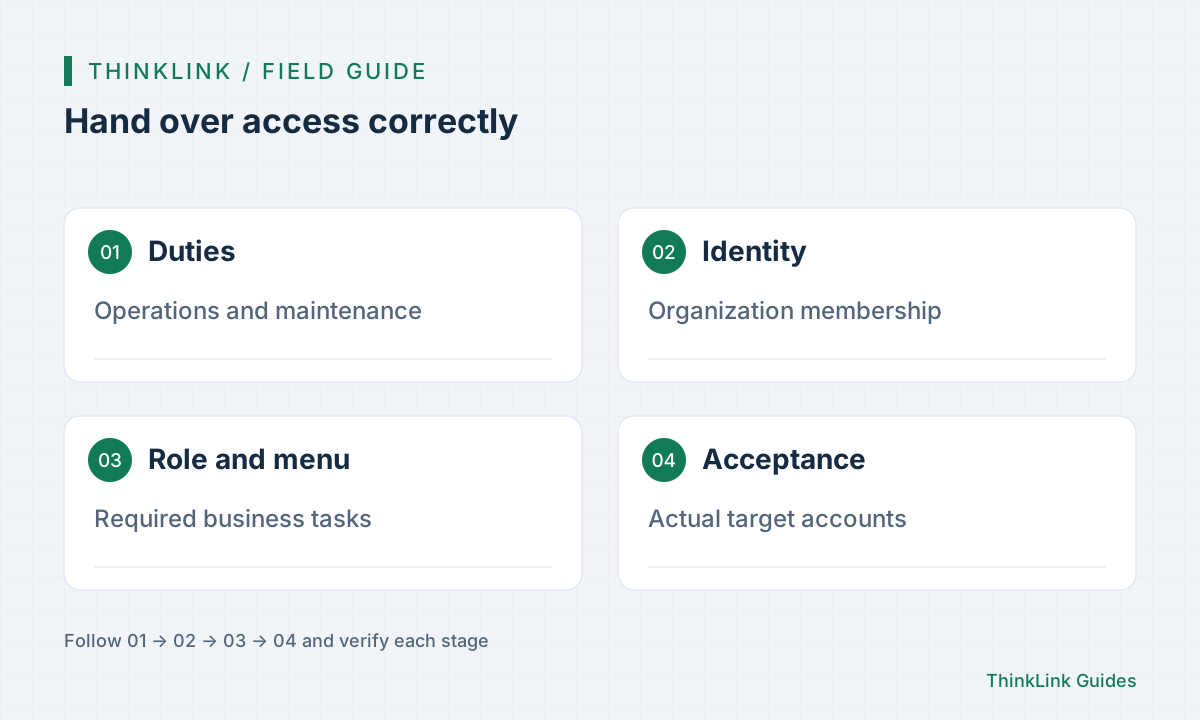
Start with duties
Operators may view status and record events, maintainers may diagnose devices, and administrators manage users and configuration. List actions, objects and owners before selecting permissions instead of assigning admin to everyone. The documented admin role has complete permissions within its organization and cannot be deleted, but is not appropriate for every duty. Menu access, data scope and individual actions need separate checks. A menu checkbox does not establish every API permission, and this method does not claim unverified button-level controls exist.
Confirm membership and role
Platform login and membership in the target organization are different. Create or invite through supported user management and check both organization and role. Invitations still require acceptance. For new accounts, follow current required fields for name, account, initial password and role rather than assuming older account formats. Department membership does not itself prove device access scope. Test with an independent account, not a reused administrator session, and keep shared administrator passwords out of manuals.
Authorize new menu entries
A dynamic menu needs both enabled/display settings and permission in the custom role’s menu tree. After saving, have the target user refresh or reenter the organization. Confirm not only the navigation label but page opening, data loading and intended objects. If access fails, distinguish menu configuration, role assignment, membership and backend responses. Do not quietly grant all permissions to make a demonstration pass; that would invalidate the agreed duty-based design.
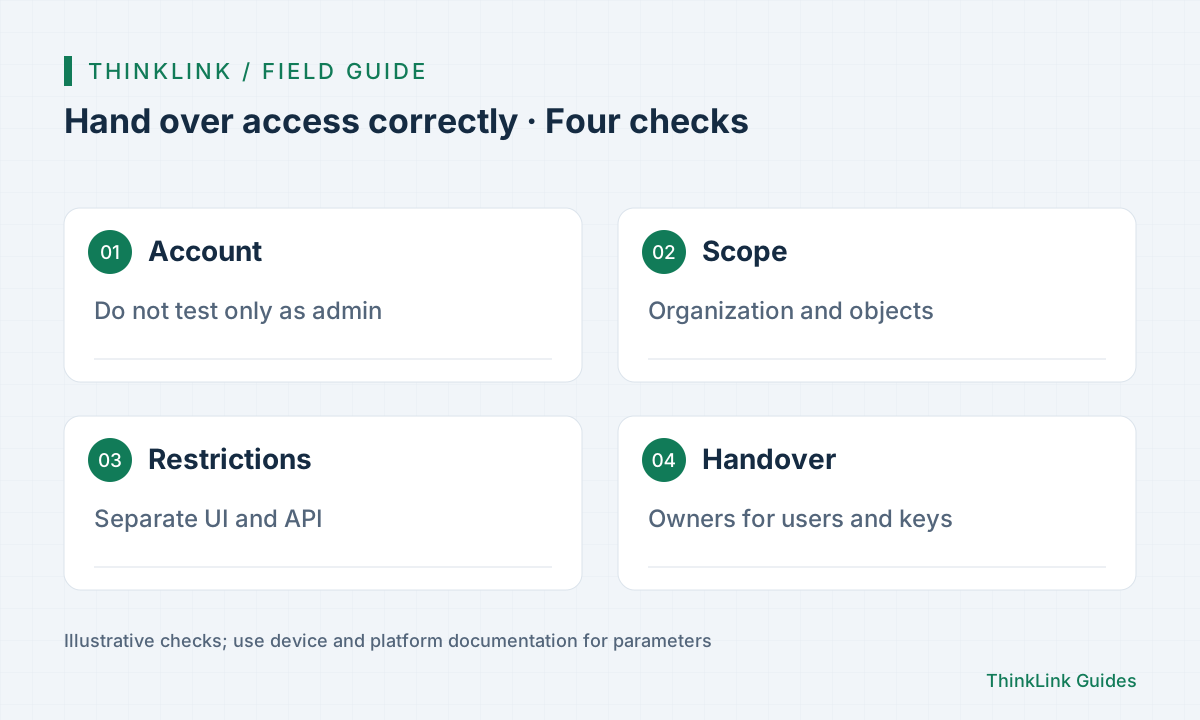
Run acceptance per account
Prepare business steps for each role: enter the correct organization, inspect intended devices, open history and perform explicitly authorized maintenance. Check restrictions through harmless reads or interface inspection rather than dangerous actions. Record success, denial, loading failure and untested cases separately. Hidden buttons do not prove server enforcement. Resolve access-scope gaps before handing over the affected duty, remove temporary test grants and confirm normal accounts still complete their intended work.
- List required actions by duty.
- Confirm membership, role and menu configuration.
- Complete tasks using the handover accounts.
- Remove temporary grants and assign maintenance owners.
Include staff and credentials
Document role purpose, account owner, organization scope, entry points and change procedures. On reassignment or departure, review roles, membership and related credentials rather than renaming a user. Personal and system API Keys have different creation paths and authority boundaries; follow current documentation and never place keys in public pages, screenshots or manuals. Ownership transfer is separate from ordinary role changes. Record the accounts and scopes actually tested so successors can repeat the accepted tasks.
Frequently asked questions
Does administrator access prove a custom role works?
No. Grant the relevant menu permissions and verify with the intended account.
Does hiding a button prove API authorization is enforced?
No. Interface visibility and server authorization require separate checks within the allowed scope.
References and further reading
This guide uses the official sources below. Diagrams explain the approach; consult the documentation for your version for exact menus, fields and capabilities. Linked sources are in Chinese.