ThinkLink Guides / Field operations
Before a ThinkLink device import: identity, templates and update scope
Separate creation from updates, check location codes and templates, and verify a small batch before changing a larger device population.
Identify devices by EUI, start from an export of the current version and keep only intended update columns. Validate a small sample before scaling; assess template reset separately.
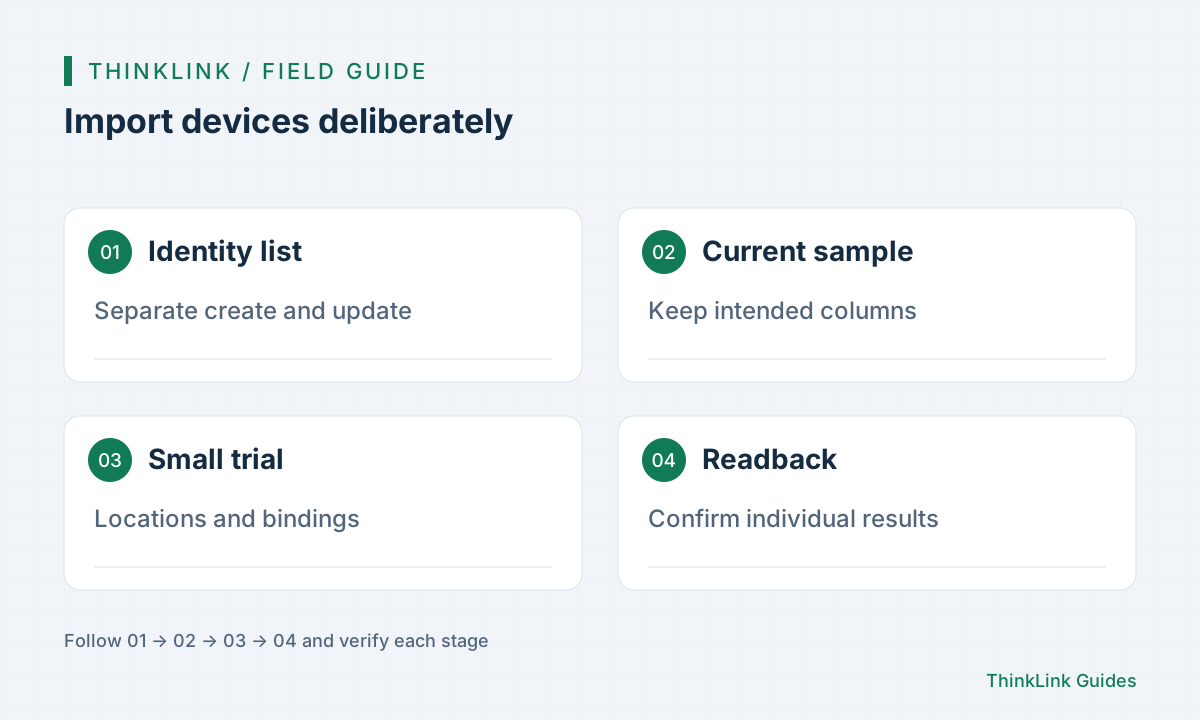
Separate creation and updates
Import is not creation-only. The documentation says an existing EUI updates device parameters, while a new EUI creates a record. Compare each identity with the target organization first. Names do not determine identity. List expected creations, updates and changed fields, and keep EUI cells as text to preserve leading zeros. Do not confuse asset numbers or gateway EUIs with device EUIs. A final total count cannot demonstrate that every row received the intended treatment.
Use a current, narrow template
Export an example from the target version, retain EUI and intended changes, and remove irrelevant columns. Do not assume many blank cells mean “preserve”: omitted columns, blanks and defaults can differ by field. Check documented semantics with test records. Treat files containing LoRaWAN keys as credentials. Device records and LoRaWAN profiles are separate objects, so importing management records does not prove that network authentication is ready.
Validate locations and templates first
A device location_code must reference an existing location. Unknown codes can leave location empty while import continues. Check model, RPC, attributes and forwarding rules in the selected template. Template reset replaces groups of configuration and is not an incremental one-field edit; an older template without forwarding rules can restore the default of no forwarding. Try both an existing configured test device and a new record, checking preserved bindings and business parameters before a production batch.
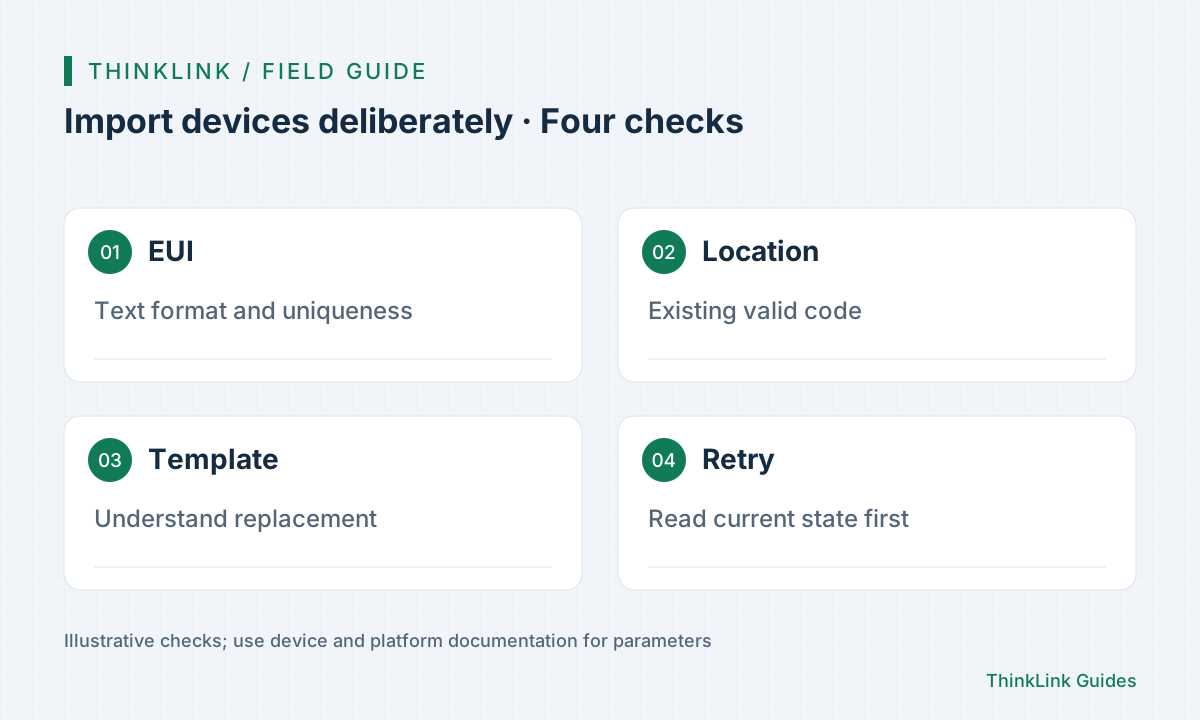
Submit small groups and read back
Group devices by model or configuration differences and validate a small sample first. Record target EUI, current values and intended values before submitting. Then reread details or supported APIs to check identity, location, model and changed fields. After a timeout, inspect current state and import feedback before retrying; resending everything can overwrite successful rows again. The checked-field semantics of bulk parameter editing are separate from spreadsheet column semantics and must not be assumed interchangeable.
- Classify creation and updates by EUI.
- Remove unrelated columns and inspect the template.
- Test both creation and update cases.
- Read back before handling failures or later batches.
Deliver a change record
Keep batch name, execution time, template version, per-record outcomes and readback results. Exports can help restore configuration but are not complete backups of history, relationships and credentials. For name or location changes, verify configuration and query scope; for model changes, verify a real parsed report as well. If an unexpected overwrite occurs, stop later batches and compare current values before applying the agreed recovery. An object-level record is more useful than a success screenshot.
Frequently asked questions
Does importing an existing EUI create another device?
The current documentation describes an update, so verify identity and field scope first.
Can template reset replace a one-field bulk edit?
It replaces several configuration groups. Choose an operation matching the intended scope.
References and further reading
This guide uses the official sources below. Diagrams explain the approach; consult the documentation for your version for exact menus, fields and capabilities. Linked sources are in Chinese.