ThinkLink Guides / Visualization and operations
Designing ThinkLink dashboards: organize locations and data first
Start with operators' tasks, organize locations and fields, choose simple or advanced dashboards, and verify timestamps, units and abnormal states.
Decide what users need to do before choosing charts. Start with key devices, explicit units and update times. Cross-device totals require a defined calculation scope; placing devices on one screen is not data aggregation.
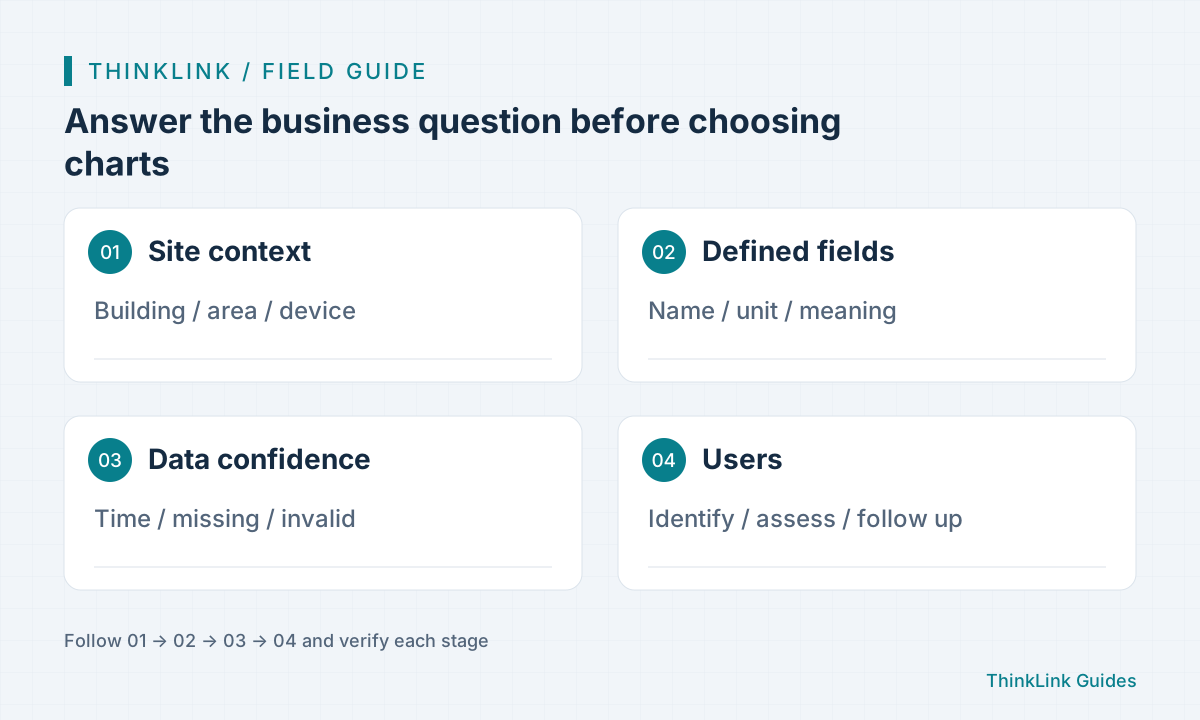
Give each dashboard a clear viewing task
Operators need to know where an issue is and whether to visit. Engineers need data provenance and continuity. Different roles need different emphasis. Filling one page with every sensor and history chart can obscure the most useful information.
Write three questions, such as which room has a leak, which meter stopped updating and how long a temperature excursion lasted. Assign a source and an actionable next step to each question before choosing a status card, list or trend.
Establish location context before adding device cards
ThinkLink location management organizes site spaces, while dashboard configuration selects devices, models and fields. Standardize location names, device aliases and units so users can associate readings with the correct area.
For a building, agree on building, floor and room structure, then map devices to explicit locations. Explain ownership if a device serves multiple areas. Physical location, maintenance responsibility and statistical grouping need not be identical; do not force one name to mean all three.
Validate a simple dashboard before adopting an advanced designer
The documentation distinguishes simple and advanced dashboards. Simple dashboards build cards from devices and fields and suit initial live-view validation. The advanced dashboard is a separately installed optional component with richer design capabilities. Check the installed components and version before relying on a feature.
First verify data, then appearance. Confirm each card's device binding and units, and ensure the saved dashboard reopens before adjusting columns, sizes and colors. Preview, full-screen view and saving are separate operations.
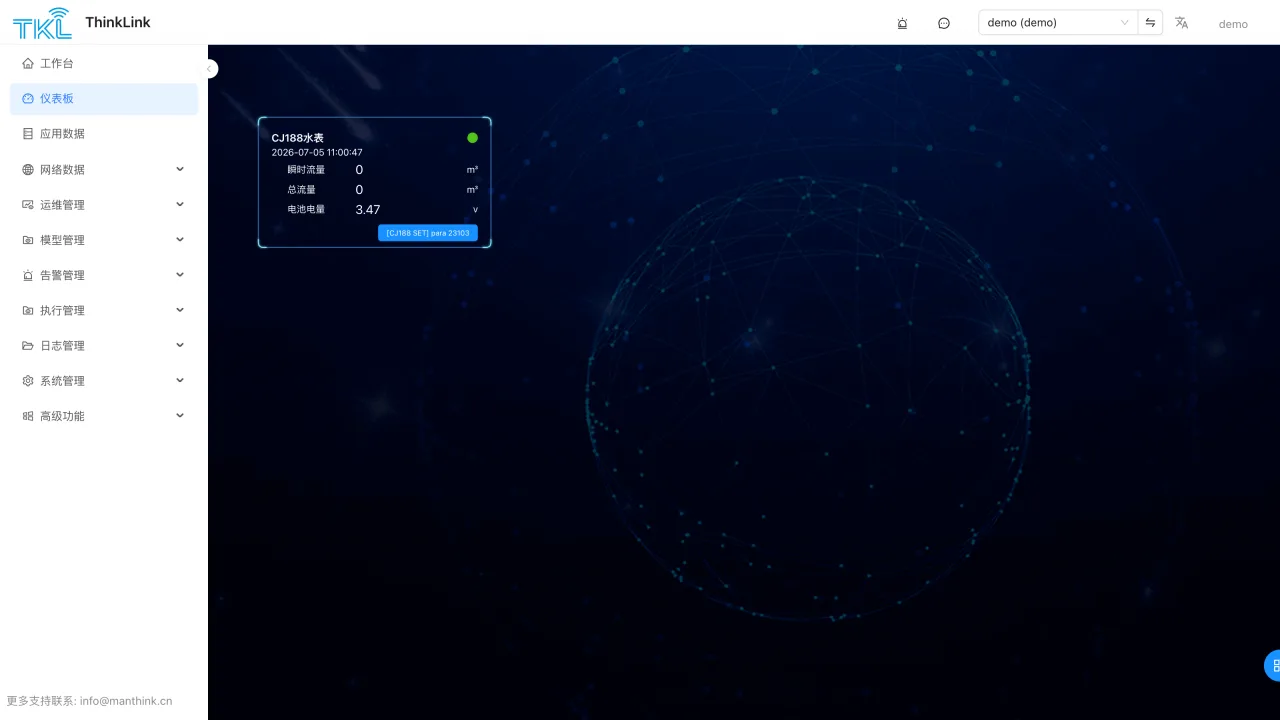
Show both the value and whether it can be trusted
A card that indefinitely shows the last good reading can conceal a reporting failure. Show update time and distinguish no data, offline status, decoding errors and real zero values. If a component cannot express these states, complete the data and page logic before relying on it for operations.
Define calculation rules. Cumulative water volume is not daily usage; values with different units cannot be added. Device replacement, counter resets and missing samples can alter trends. Specify device scope, time window and missing-value policy before validating cross-device totals.
| Element | Question to check |
|---|---|
| Source | Which device, model and field? |
| Units | Instantaneous value, total or interval statistic? |
| Time | When was it updated, and is it still fresh? |
| Abnormal state | Are missing data and zero distinguished? |
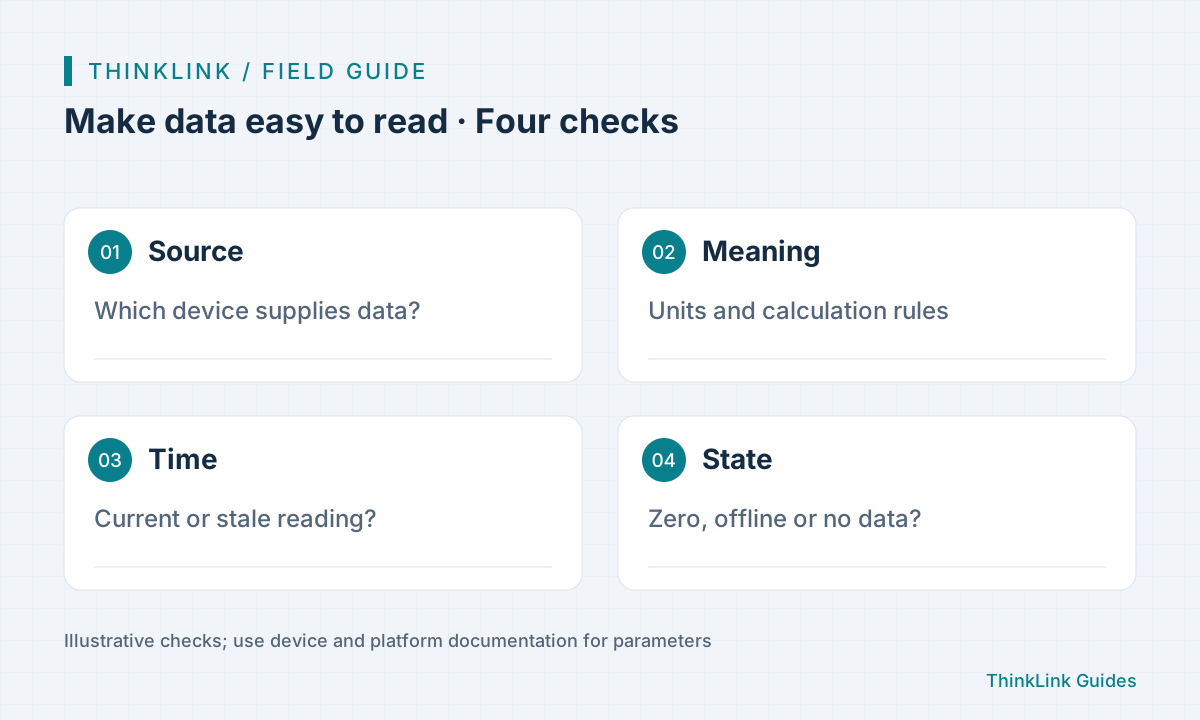
Accept the dashboard through daily workflows
Ask an actual user to find an area, identify an abnormal device and open its history. Observe whether they understand the fields, find the update time and know whom to contact next. This reveals delivery gaps beyond visual polish.
Check permissions and device feedback separately for RPC buttons. If public sharing is enabled, review the actual component's exposure controls and exclude restricted device information. Keep explicit boundaries between viewing and control, and internal and public use.
Frequently asked questions
Does displaying multiple devices on one screen aggregate them into an asset?
No. Side-by-side display is layout. Aggregation requires defined data relationships and calculations verified with samples.
Is the advanced dashboard installed by default?
Not necessarily. The documentation describes a separate optional component; check the target platform's installation and version.
References and further reading
This guide uses the official sources below. Diagrams explain the approach; consult the documentation for your version for exact menus, fields and capabilities. Linked sources are in Chinese.