实时总览
Live overview
集中查看网关、设备、资产与子设备的总量及在线状态。
View gateway, device, asset, and sub-device totals and online status.
连接现场设备、场景与告警,让运维人员在移动端完成实时监控、数据分析与远程控制。
Connect field devices, scenes, and alarms. Monitor operations, analyze data, and perform remote control from one mobile workspace.
ThinkLink 面向设备运维与实时监控场景,覆盖从资产总览到远程指令下发的关键工作链路。
ThinkLink covers the essential workflow of device operations—from asset visibility to remote commands.
集中查看网关、设备、资产与子设备的总量及在线状态。
View gateway, device, asset, and sub-device totals and online status.
创建场景、绑定设备,并通过仪表板聚合查看现场数据。
Create scenes, bind devices, and aggregate field data on dashboards.
浏览设备详情、实时遥测、历史曲线、关联关系与物模型。
Explore device details, telemetry, history, relations, and thing models.
查看告警等级与详情,支持标记已读、解除与添加处理备注。
Review alarm severity and details, mark as read, dismiss, and add notes.
向授权设备下发远程控制指令,并追踪执行日志。
Send authorized control commands to devices and trace execution logs.
支持租户切换、中文与英文界面,以及独立服务器配置。
Switch tenants and languages, with configurable server environments.
目前仅支持 Android。使用安卓手机扫描右侧二维码,或点击下方按钮直接下载 APK 安装包。
Android is currently the only supported platform. Scan the QR code on an Android device or download the APK directly.
以下配置基于当前测试服务器。生产上线后,请替换为正式服务器与分发账号。
The configuration below uses the current test server. Replace it with production settings before public release.
在登录页点击“服务器设置”,选择“自定义”环境。
On the login screen, tap “Server Settings” and select “Custom”.
选择 HTTP,主机填 192.168.1.216,端口填 80,路径填 tkl-mobile-server;点击测试连接。
Choose HTTP. Enter host 192.168.1.216, port 80, and path tkl-mobile-server; then test the connection.
连接成功后点击“保存并应用”,返回登录页。
After a successful test, tap “Save & Apply” and return to login.
输入管理员账号与密码,按需勾选“记住密码”,点击登录。
Enter the administrator credentials, optionally enable “Remember password”, and sign in.
安全提示:官网不展示测试账号密码。请由管理员通过受控渠道向获授权用户分发,并在正式上线前启用 HTTPS、替换测试凭据。
Security note: Test credentials are intentionally not published. Distribute them only through controlled channels, and enable HTTPS with production credentials before launch.
截图来自 ThinkLink APP 的实际手机端页面,按照首次使用顺序排列。
Captured from the live ThinkLink mobile interface and ordered by the first-time setup flow.
同一页面内提供独立的中文版与英文版说明,可切换查看或直接打印为 PDF。
Chinese and English manuals are included in one page. Switch language or print directly to PDF.
ThinkLink APP 是面向工业物联网设备现场运维与实时监控的移动客户端,基于 uni-app 与 Vue 3 构建。目前正式提供 Android APK 版本,客户端通过独立的 ThinkLink Mobile Server 接入业务数据。
ThinkLink APP is a mobile client for industrial IoT field operations and real-time monitoring. Built with uni-app and Vue 3, it is currently distributed as an Android APK and accesses business data through ThinkLink Mobile Server.
登录后在底部导航切换“首页、场景、设备、我的”。下拉页面可刷新数据。打开设备详情可查看实时数据和历史曲线;具有权限的用户可下发 RPC 指令。告警详情页支持处理状态更新和备注。租户切换位于“我的”页面。
Use the bottom navigation to switch between Home, Scenes, Devices, and Profile. Pull down to refresh. Open a device for live data and history; authorized users may send RPC commands. Alarm details support status updates and notes. Tenant switching is available under Profile.
用户只能访问其账号和当前租户授权范围内的数据。RPC 属于远程控制操作,应在确认目标设备、指令参数及业务影响后执行。密码与令牌由客户端本地保存机制管理;共享设备应退出登录并避免保存密码。
Users may access only data authorized for their account and active tenant. RPC is a remote-control action; verify the target, parameters, and operational impact before execution. Passwords and tokens are managed in local client storage. Sign out and avoid saving passwords on shared devices.
http://192.168.1.216/tkl-mobile-server。http://192.168.1.216/tkl-mobile-server.以下 20 个页面覆盖 ThinkLink APP 当前全部业务路由。截图取自实际手机端界面,说明按推荐操作顺序编排。
These 20 pages cover every current ThinkLink APP route. Screenshots come from the live mobile interface and follow the recommended workflow.
入口:启动 APP。输入账号和密码后点击“登录”;个人设备可选择记住密码,也可切换中英文。
Entry: launch the app. Enter account and password, then sign in. Remember credentials only on a private device.
入口:登录页“服务器设置”或“我的 → 服务器配置”。选择协议,填写主机、端口、路径和 MQTT 地址;先测试连接,再保存应用。
Entry: Login → Server Settings or Profile → Server Config. Set protocol, host, port, path, and MQTT; test before saving.
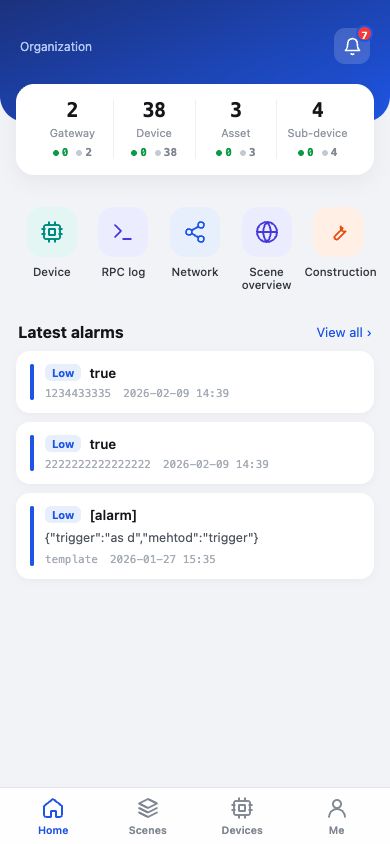
查看网关、设备、资产、子设备的总量及在线/离线状态。功能入口包含设备、RPC 日志、网络、场景总览和施工;点击告警或“查看全部”进入告警处理。
Review totals and status. Open Devices, RPC Log, Network, Scene Overview, Construction, or recent alarms.
入口:底部“场景”。按名称搜索场景,查看场景内网关、设备、资产、子设备及在线统计,点击“进入”打开场景详情。
Entry: bottom tab Scenes. Search by name, review asset/status counts, and tap Enter for details.
查看场景统计、仪表板和已绑定设备。设备行支持查看详情、发送 RPC、历史数据和移除;“添加”用于绑定更多设备。
View statistics, dashboards, and bound devices. Each device supports details, RPC, history, and removal.
入口:场景详情“添加”。在设备、资产、子设备和网关分类间切换,勾选目标后点击底部“添加”。
Entry: Scene Details → Add. Switch categories, select targets, and confirm Add.
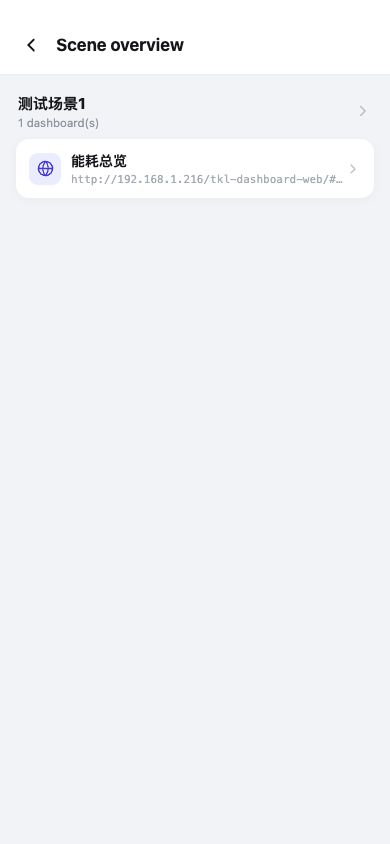
入口:首页“场景总览”。集中展示各场景拥有的仪表板数量和仪表板入口,点击卡片打开对应看板。
Entry: Home → Scene Overview. Review dashboards by scene and open the selected board.
仪表板以嵌入网页方式展示场景可视化。页面顶部可返回场景,也可在外部浏览器打开。
Dashboards are embedded web views. Return to the scene or open the board in an external browser.
入口:底部“设备”。可按 EUI 或设备名称搜索,并在设备、资产、子设备、网关四类间切换;点击列表项进入详情。
Entry: bottom tab Devices. Search by EUI/name, switch categories, and tap an item for details.
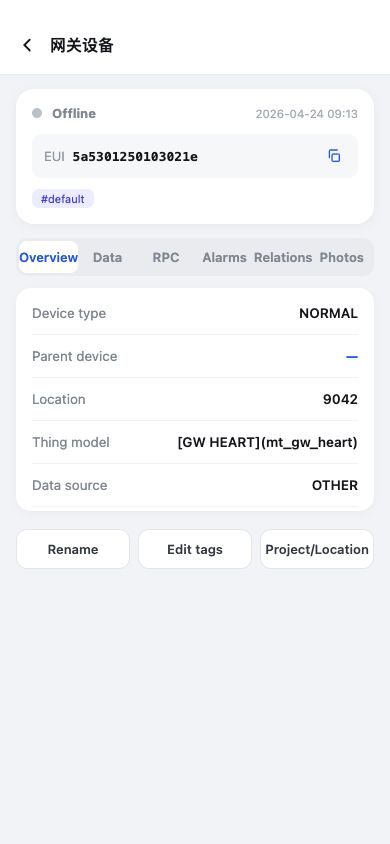
使用“概览、数据、RPC、告警、关联、照片”标签查看设备全量信息。支持重命名、编辑标签和设置项目/位置。
Use Overview, Data, RPC, Alarms, Relations, and Photos. Rename devices, edit tags, and set project/location.
从设备详情的数据字段或场景设备操作进入。选择物模型、字段和时间范围(今天、24 小时、7 天或自定义)查询趋势。
Open from a device data field or scene device action. Select model, field, and time range.
从设备页切换到“网关”分类后进入。查看心跳、类型、版本、LoRa 标准、在线时间和位置;具备权限时可执行网络、Ping、参数、透传和升级。
Open from Devices → Gateways. Review status/version data and perform authorized diagnostics or upgrades.
入口:首页“网络”或网关详情“网络”。在 AS、NS、IP 数据间切换,按 DevEui 搜索,并使用全部、今天、近 7 天、近 30 天筛选。
Entry: Home → Network or Gateway → Network. Switch AS/NS/IP, search DevEui, and filter by time.
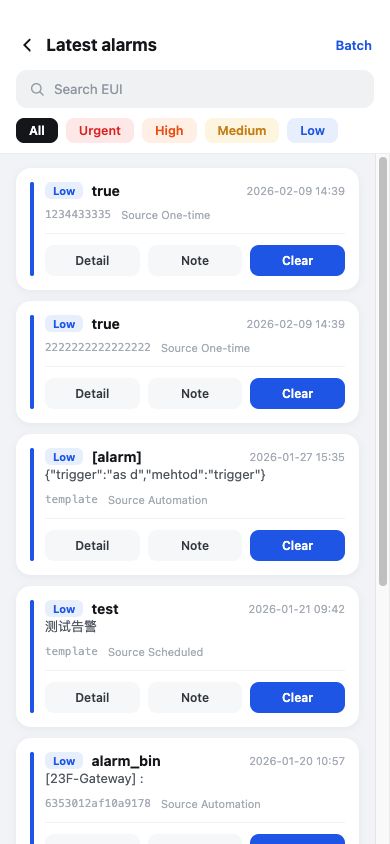
从首页铃铛、最新告警或“查看全部”进入。按 EUI 搜索及等级筛选;每条告警支持详情、备注和解除,批量模式用于集中处理。
Open from the bell or recent alarms. Search/filter, then view details, add notes, dismiss, or use batch mode.
查看等级、状态、告警名称、设备 EUI、触发来源、时间和类型。可进入关联设备、添加处理备注或解除告警。
Review severity, status, source, time, and device. Open the related device, add notes, or clear the alarm.
从场景设备“发送 RPC”或设备详情“RPC”进入。选择命令,按定义填写参数,复核目标设备后执行。
Open from a scene device or Device → RPC. Select a command, enter parameters, verify the target, and execute.
入口:首页“RPC 日志”或设备 RPC 标签中的日志入口。按时间查看级别、设备、来源、命令及执行结果,用于审计和故障排查。
Entry: Home → RPC Log or Device → RPC. Review timestamp, level, device, source, command, and result.
入口:首页“施工”。从允许用于施工的 RPC 列表中选择任务,按页面提示填写参数并执行;安装照片等资料用于现场留档。
Entry: Home → Construction. Select an approved construction RPC, provide parameters, and retain site records.
入口:底部“我的”。查看账号和当前租户,切换组织,进入安全、服务器、语言与关于页面;底部显示 APP 和服务器版本。
Entry: bottom tab Profile. Review account/tenant, switch organization, open settings, and check versions.
入口:“我的 → 安全”。查看微信与 Google 的绑定状态;微信登录正式开放后,可在此完成账号绑定或解绑。
Entry: Profile → Security. Review WeChat/Google binding and bind or unbind supported sign-in methods.
80 是 HTTP 的默认端口。ThinkLink 会按标准 URL 规则省略默认端口,实际仍通过 80 端口连接。
Port 80 is HTTP's default port. ThinkLink omits default ports according to standard URL formatting, while the connection still uses port 80.
当前后端路由前缀为 tkl-mobile-server,测试环境应填写该路径;仅当部署方将后端直接挂载在域名根路径时才留空。
The current backend route prefix is tkl-mobile-server, so keep this path for the test environment. Leave it empty only when the backend is mounted at the domain root.